Block Gallery
The Block Gallery contains prepared patchwork blocks and your saved designs. Browse previews, names and categories for inspiration or return to one of your own blocks.
Open it from Studio with Browse all blocks.
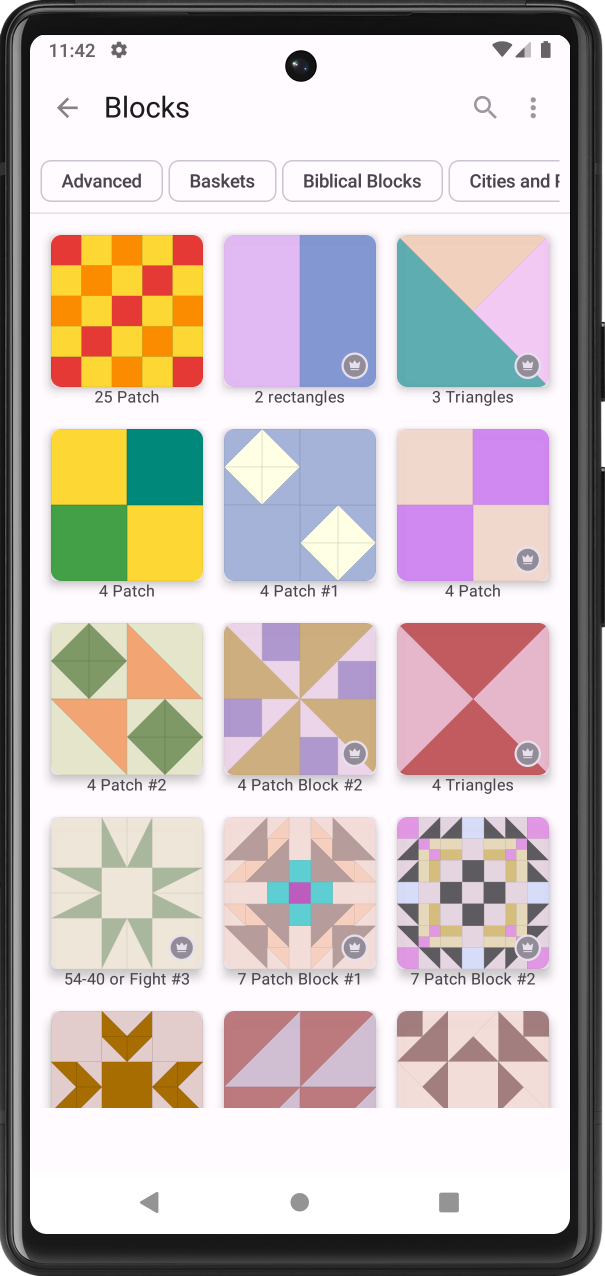
Open a block
Tap a block preview to open it directly in the editor:
- Your own block opens for editing. You are working on the original saved design.
- A prepared block opens for viewing. The original cannot be edited directly.
Unlike the Quilt Gallery, tapping a block does not open an action menu. Deleting and making copies are not separate actions on gallery cards.
Search by name
Tap the magnifying glass in the top bar and enter part of a block name. Search ignores diacritics and letter case, and can be combined with categories.
The cross in the search field clears the search text. The back arrow in the top bar hides the search bar without clearing your query. An active query appears in a summary chip (Search: ...) below the top bar. Tap the summary text to reopen search in the top bar; tap its cross to clear the search query.
The Clear filters button before the category row resets selected categories and My Blocks, but preserves your search query text. Clear the search text as well to restore the full list.
Categories and your own blocks
Categories appear in a row below the top bar. Swipe sideways to see more.
- Tap a category to select it; tap it again to remove it.
- You can select several categories. Results must match at least one selected category and any name search. Adding another category can therefore broaden the results.
- If you have saved personal blocks, My Blocks also appears. It separately limits results to your saved designs, including personal copies of prepared blocks. It does not automatically include every block currently used in a quilt.
- Combine My Blocks with a name search and categories to show only your designs matching the name and at least one selected category. A personal block without categories will not appear while a category is selected.
If no items appear, deselect all categories, turn off My Blocks, or clear the search text. The cross before the filter row clears the categories and My Blocks, but keeps the search text. Clear the search as well to restore the full list.
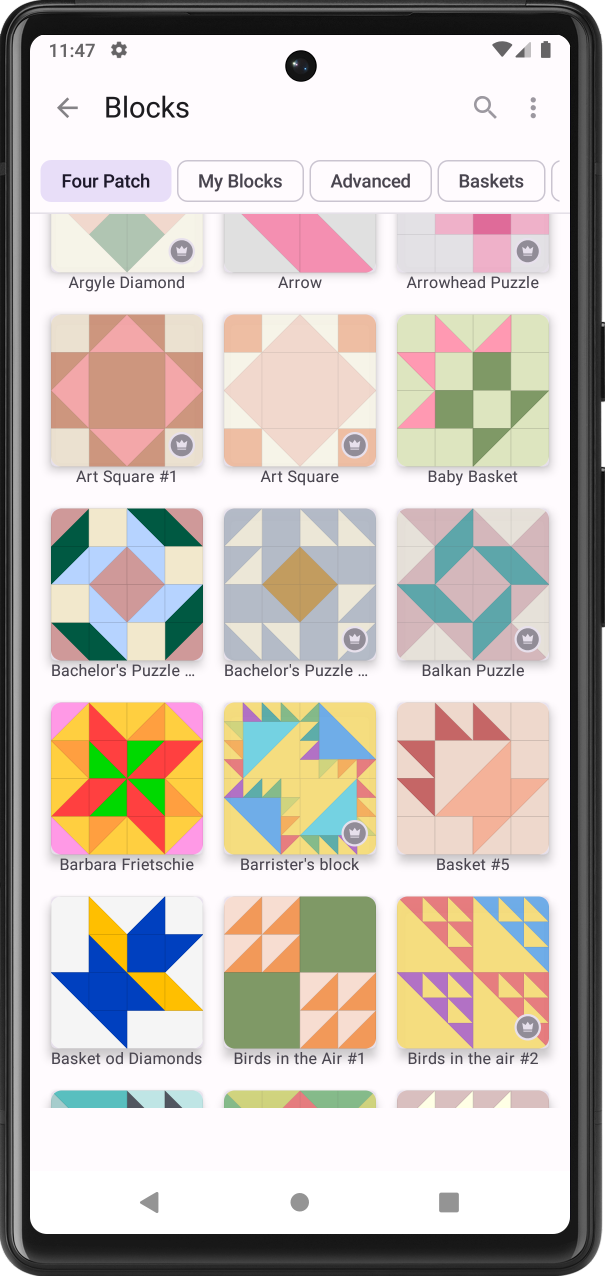
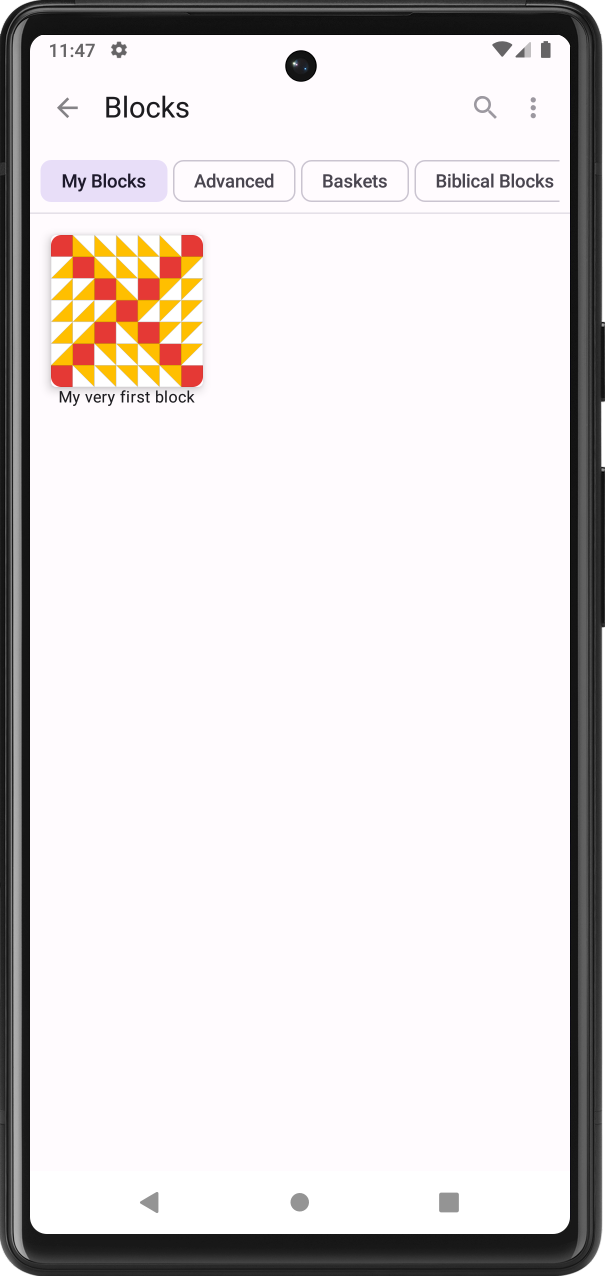
Preview colors
Categories describe pattern characteristics; search matches the name. After inserting a pattern, you can change its colors by editing the inserted block, so its original palette need not determine your choice.
Premium blocks
Some prepared blocks require Premium. Without access, their previews are faded and carry a Premium badge in the bottom-right corner. Tapping one opens Premium access options instead of the editor.
Create your own block
Choose Create block from the three-dot menu. In the editor, choose a grid and begin drawing your design. After saving it, you can find it among your own blocks in the gallery.
See Draw your own block for the full workflow.
Not sure how blocks and quilts differ? See the basic concepts in the help introduction.
On phones and tablets
The number of preview columns adjusts to the screen width. Scroll vertically for more blocks and swipe the categories sideways.
For saving, copies and image export, see Save, copy and share a design.