Start a new design
Would you like to draw a block, arrange a quilt on a blank canvas, or start with a prepared layout? In Studio, choose the matching action:
| I want to… | Choose |
|---|---|
| Draw a custom patchwork block. | New Block |
| Start a quilt from scratch and choose its dimensions and grid. | New Quilt |
| Start with a layout containing places for blocks. | Quilt from Template |
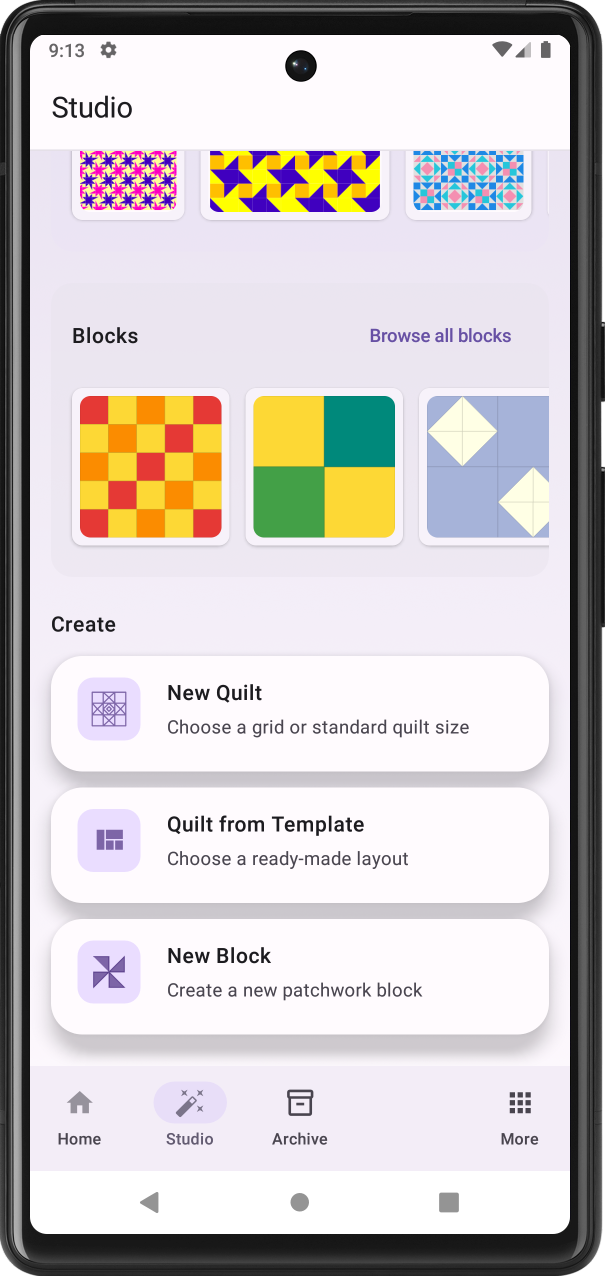
You can also start designs from Home. Action names there may differ depending on whether you already have saved designs.
Draw a block
New Block opens the block editor. Choose a grid, draw patches and give them colors. Name and save your design; you can then use your block when arranging a quilt.
Try drawing squares, rectangles and triangles with the guide Draw your own block.
Start a blank quilt
New Quilt first opens quilt dimensions. Choose a preset or enter custom dimensions, row and column counts, and units. Then continue to the editor.
The canvas starts empty with a grid. The grid itself does not create patches or insert blocks. Continue with Arrange a quilt.
Use a prepared template
Quilt from Template opens the template gallery. Choose a layout as the starting point for your design.
A template already contains patches. Their colors identify related groups that you can select together and fill with blocks. Quilt templates and your own starting designs explains how to use this starting point or a saved quilt of your own.
Save your new design
When you are ready, name and save your design. Your access limits may apply when saving. Save, copy and share explains the steps and the difference between saving a design and creating a copy.