New quilt dimensions
On Choose Project, set the dimensions and working grid for a new quilt. Choose a prepared size or enter custom dimensions if that option is available.
This screen opens from New Quilt in Studio or the Quilt Gallery. Home also offers New Quilt / Create Quilt.
Layout template or blank canvas?
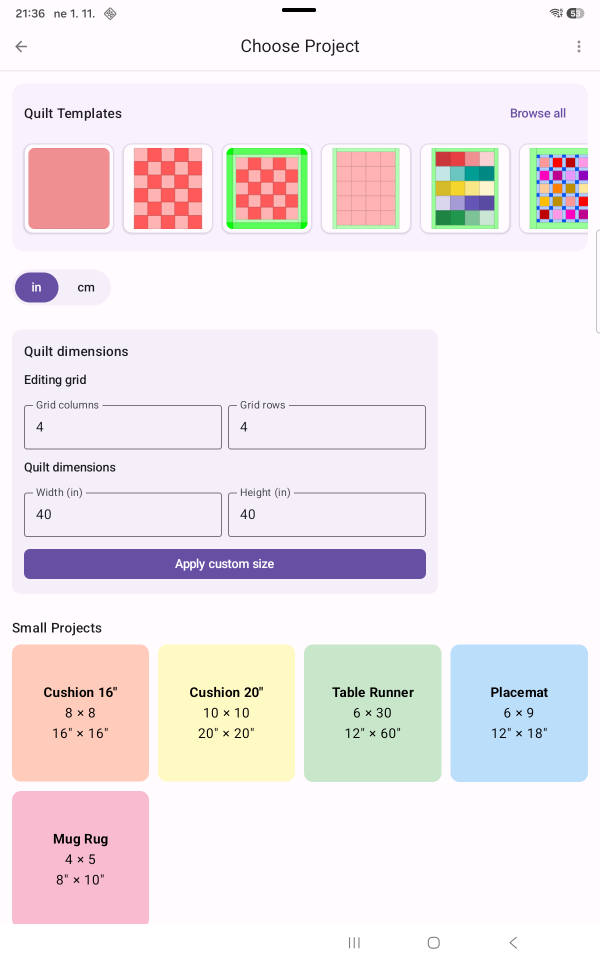
At the top of the screen, the Quilt Templates section offers previews of ready-made designs. Tap any template card to start a new quilt with that layout and color structure immediately. The Browse all button opens the full Quilt Template Gallery.
To begin on a blank canvas without a prepared layout and design your quilt from scratch, continue below by choosing units and a size preset or entering custom dimensions.
Choose units
At the top, select in for inches or cm for centimeters. Choose units before selecting a preset or entering custom dimensions.
The catalog provides separate sizes for inches and centimeters. Presets with the same name may therefore have different grids and dimensions that are not exact conversions. Check the numbers on the card.
When entering a custom size
Switching units does not convert numbers already entered in the form. Check and re-enter them as needed after changing units.
Prepared sizes
Cards are grouped under Small Projects, such as cushions and table runners, and Quilt Sizes.
Each card shows:
- the preset name,
- the number of grid columns × rows,
- the physical width × height in the selected units.
For example, Mug Rug in centimeters has a 4 × 5 grid and measures 20 × 25 cm. One grid step represents 5 cm.
Tap a card to open the editor immediately. There is no separate confirmation button. Some larger presets are hidden on phones; tablets offer a wider selection.
What the grid means
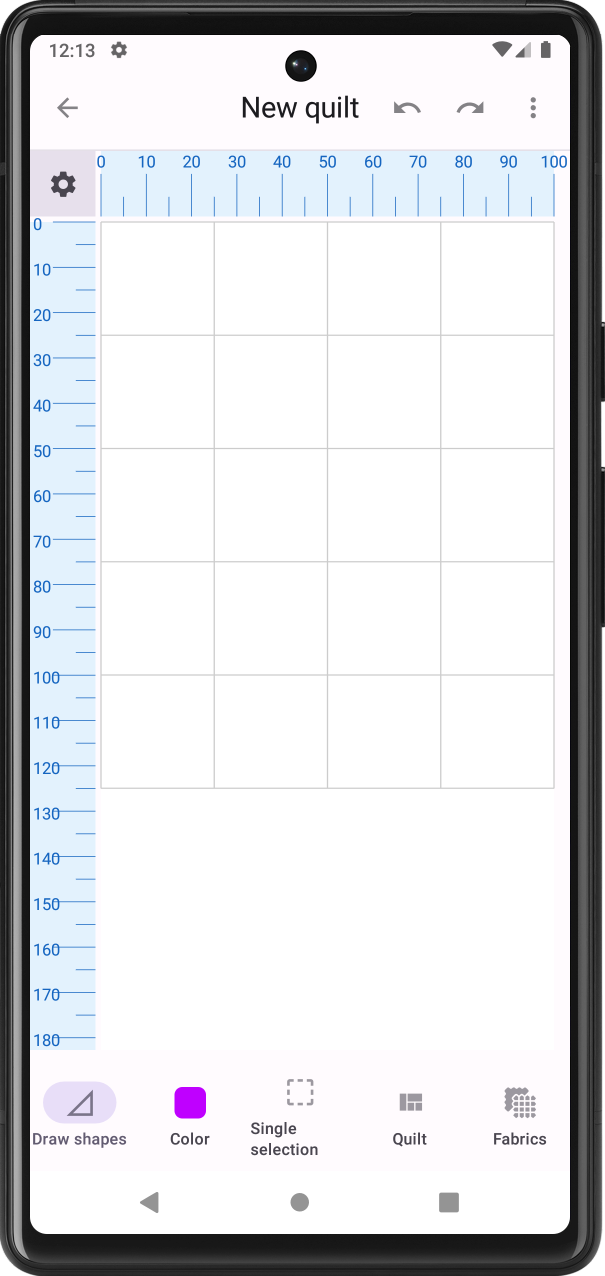
Physical dimensions describe the size of the whole design. The grid divides the canvas for drawing and positioning shapes.
The number of cells is not a number of automatically inserted blocks. A new quilt starts with a blank canvas, which you fill in the editor. A block or another shape may span several cells.
Custom dimensions
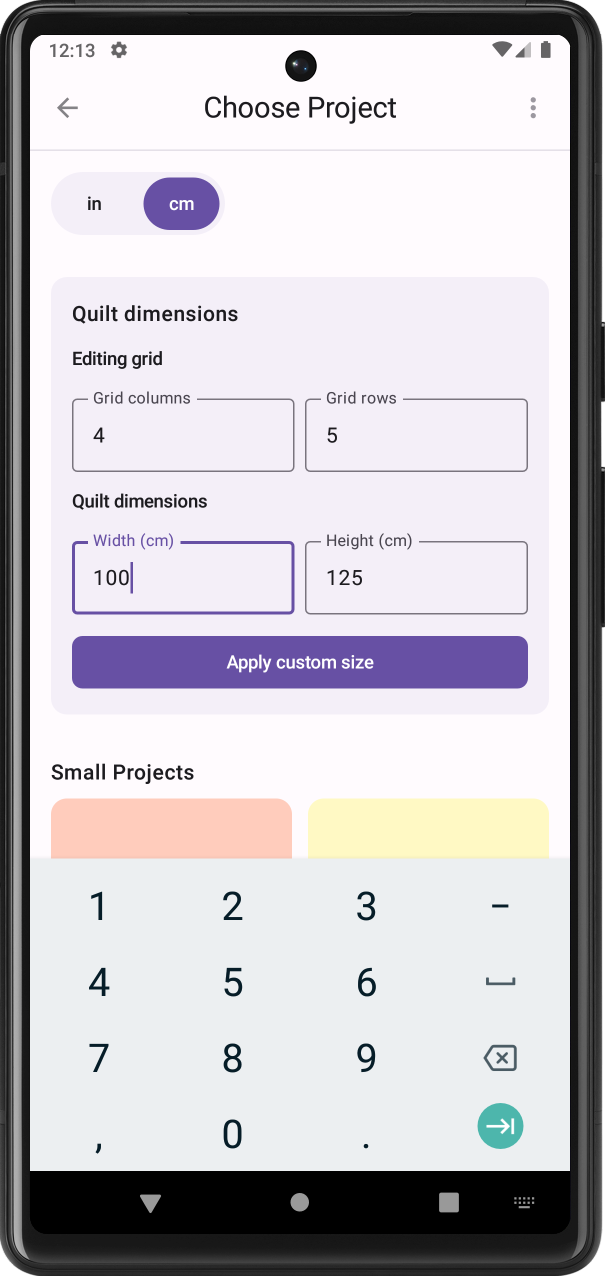
If custom sizing is available, the Quilt dimensions panel appears above the preset cards.
- Select in or cm.
- Enter positive whole numbers for Grid columns and Grid rows.
- Check Width and Height, then adjust the dimension you need.
- Move to another field so the app can recalculate related values, and check the resulting numbers.
- Choose Apply custom size to open the editor for your new quilt.
Width, height and the grid are linked. Changing width recalculates height from the ratio of columns to rows; changing height recalculates width. Changing the grid may also change the dimensions. Recalculated values are rounded to a quarter inch or half a centimeter.
For example, a 4 × 5 grid with a width of 100 cm corresponds to a height of 125 cm. To use another aspect ratio, adjust the numbers of columns and rows as well.
If the entered size requires Premium and you do not have access, the button shows a lock and Upgrade for large size. Tapping it opens Premium options. Specific limits may vary; follow the current indication in the app.
Continue in the editor
For resizing an existing design, refining its grid and adding space, see Grid and physical dimensions.
The editor opens with your selected dimensions and grid. Save your design so it appears among your quilts.