Save, copy and share a design
Save a block or quilt to reopen and edit it later. Make a copy to try another variation while keeping the original. Sharing creates an image to view or send to someone else.
The screenshots below show an earlier English interface. The current action names are Save block, Save quilt, Save nested block and Share image.
Name and save your design
- Clear the patch selection and open Block or Quilt, depending on what you are editing.
- On the Details tab, enter a Name you will recognize in the gallery.
- Tap Save block or Save quilt in the top bar.
- Wait for the successful-save message. An error or a Premium offer does not confirm that the design was saved.
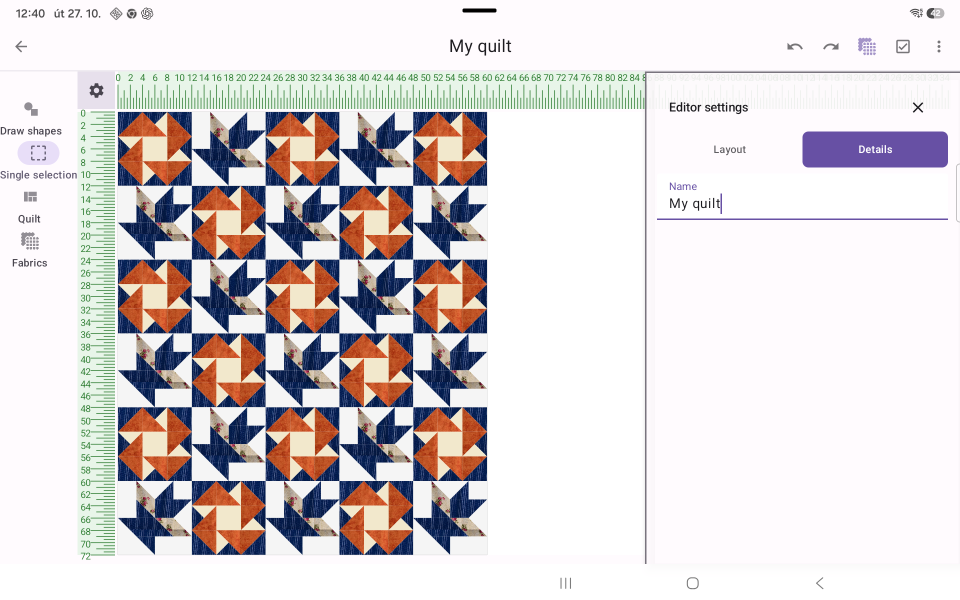
Find saved blocks in the Block Gallery and quilts in the Quilt Gallery. Saving an existing personal design updates the original item; changing its name alone does not make a copy.
You do not need to finish the whole pattern first. Save work in progress with drawn patches; a quilt may still have positions waiting for blocks. An empty design with no patches does not offer the save button.
You can save without an internet connection. Wait for saving to finish; editing, saving again and leaving are temporarily blocked. If saving fails, the editor stays open so you can try again.
Leave with unsaved changes
The top back arrow and system Back protect unsaved work in the same way. An open panel or dialog closes first. When leaving a changed design, choose:
- Save block or Save quilt: save the changes and leave only after saving succeeds. Saving directly from the top bar keeps you in the editor.
- Discard changes: leave without saving; the previously saved version remains unchanged.
- Continue editing: return to your work in progress. Dismissing the dialog with system Back or by tapping outside it does the same.
An unchanged design closes without a prompt. Selecting patches, zooming or opening a panel alone does not trigger one. Using Undo to return exactly to the saved version also removes the need for a prompt.
A new empty design with no edits closes directly. If you created patches and then removed them, the app asks to be safe; an empty design offers only discard or continue because it cannot be saved. Normal exit from view-only mode does not ask you to save. Save as new block remains a separate action for making your own copy.
Save your work regularly
The exit confirmation does not replace regular saving. It does not recover unsaved edits after an app crash or process termination. Sharing an image does not save an editable design either.
If you encounter a design limit or a feature restriction, follow the options shown in the app. If saving fails, resolve the message before trying again.
Keep the original quilt and make a copy
Want to try other blocks, layouts or colors without overwriting a finished quilt? Make a gallery copy before editing:
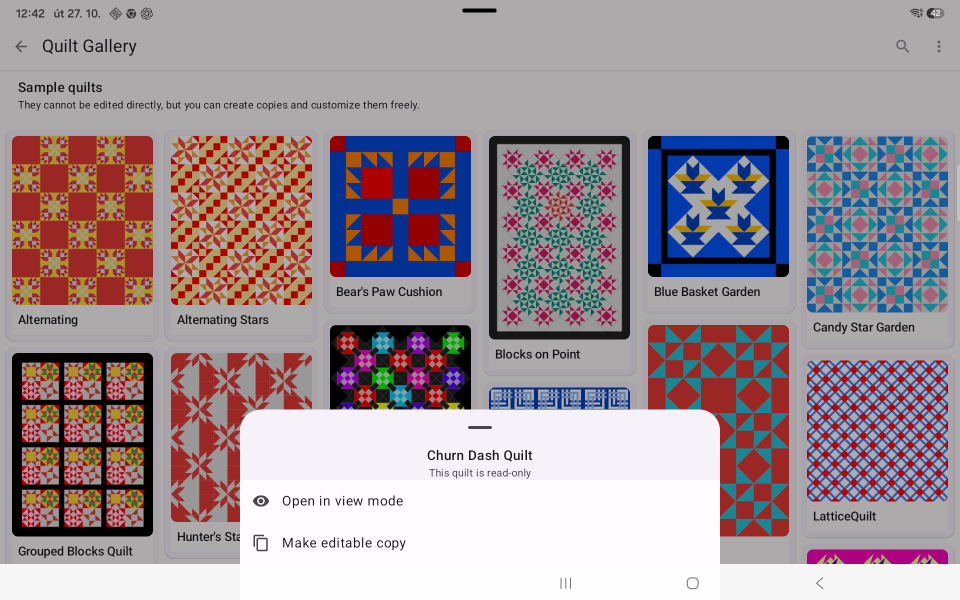
- In the Quilt Gallery, tap a personal or sample quilt.
- Choose Make editable copy.
- Find the new item under My quilts, with (copy) appended to its name.
- Open it with Edit, change its name and continue designing. Save further changes in the editor.
The copy is saved in the gallery immediately; the editor does not open automatically. The original quilt is preserved.
Make your own copy of a prepared block
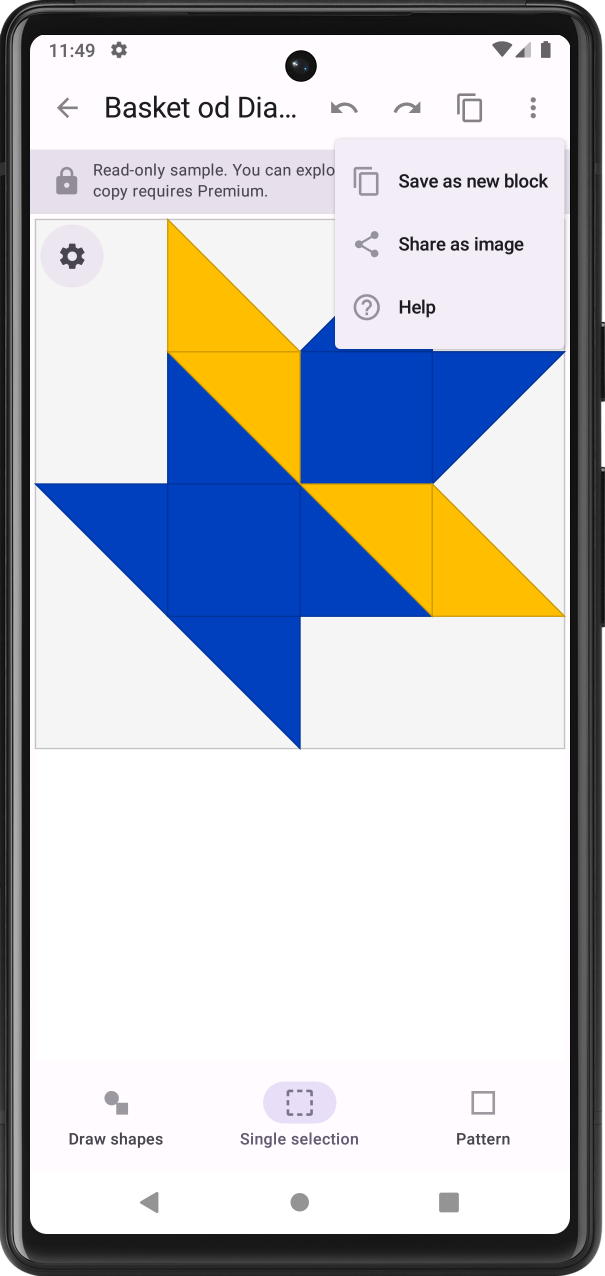
A prepared gallery block opens for viewing only. The banner below the top bar explains that you cannot overwrite the original pattern directly.
When available, Save as new block appears in the top bar or the three-dot menu. It may require Premium. After a successful save, find your personal copy in the Block Gallery, for example using My Blocks, and open it for editing. Saving a copy does not change the original prepared block.
Changes inside an embedded block
When editing an embedded block in a quilt, choose Save nested block to return the revised pattern to the relevant quilt positions. Then save the whole quilt using Save quilt.
Leaving an edited nested block also offers save, discard or continue. Saving returns the edits to the quilt; discarding does not. When you later leave the quilt, its unsaved changes are checked separately: discarding the quilt also discards the block edits just returned to it.
This does not overwrite the source block in the gallery or create a new standalone block.
Share the design as an image
- Open the editor's three-dot menu.
- If available, choose Share image.
- In the system share sheet, choose an app to receive the image, such as email or messaging. Complete sending or saving in that app.
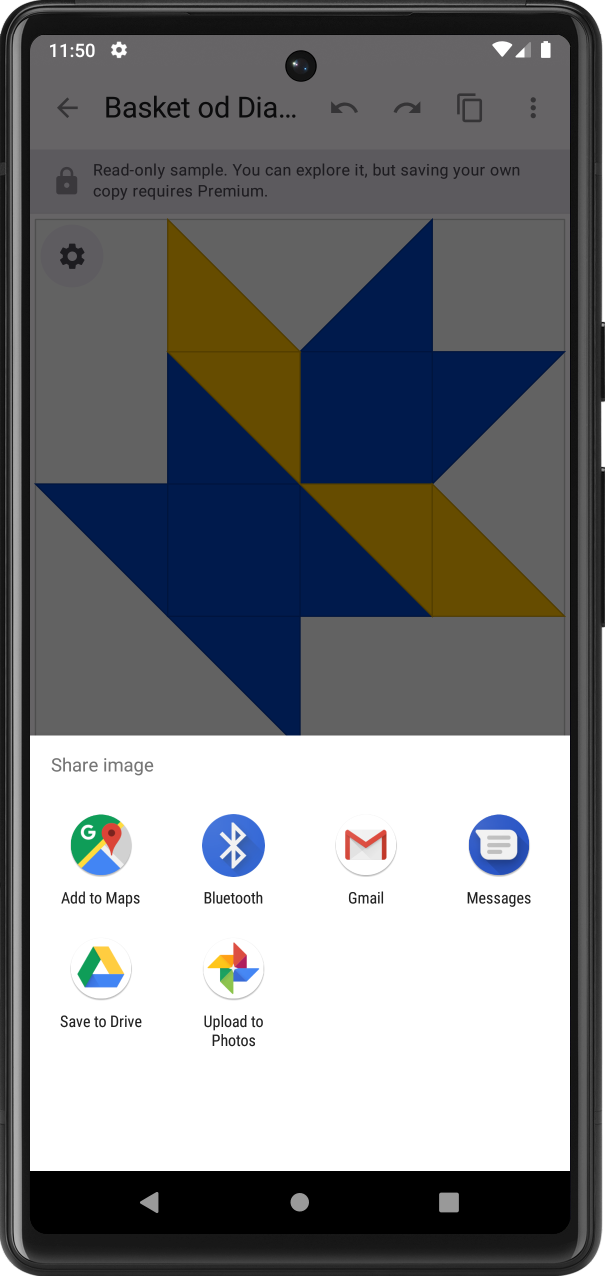
This creates a PNG of the design itself, rather than a screenshot of the editing panels. You can share both blocks and quilts. Without Premium, the image may include the Created in QuiltCat watermark; Premium exports have a higher resolution and omit this watermark.
If your design displays fabrics, the shared image also includes their photos. Before sending it, check what you are giving the recipient. Their copy remains independent of later changes to, or deletion of, the design or fabric in QuiltCat.
An image is not an editable design
Sharing does not save changes to the QuiltCat gallery. The recipient receives an image, rather than a block or quilt they can reopen for editing this way. Save your design in the app first if you want to continue working on it. The image is also not a cutting pattern or a guaranteed-to-scale print template.
Editor overview · Draw a block · Arrange a quilt · Templates and your own starting designs