Assign fabrics to quilt colors
Design a block using colors, then assign photographs of actual fabrics in the quilt to compare how your materials will look. One assignment applies to every patch of the same color throughout the quilt, including patches inside embedded blocks.
Two parts with the same color receive the same fabric. To use different fabrics, first give those parts different design colors. Conversely, one fabric can be assigned to several different colors.
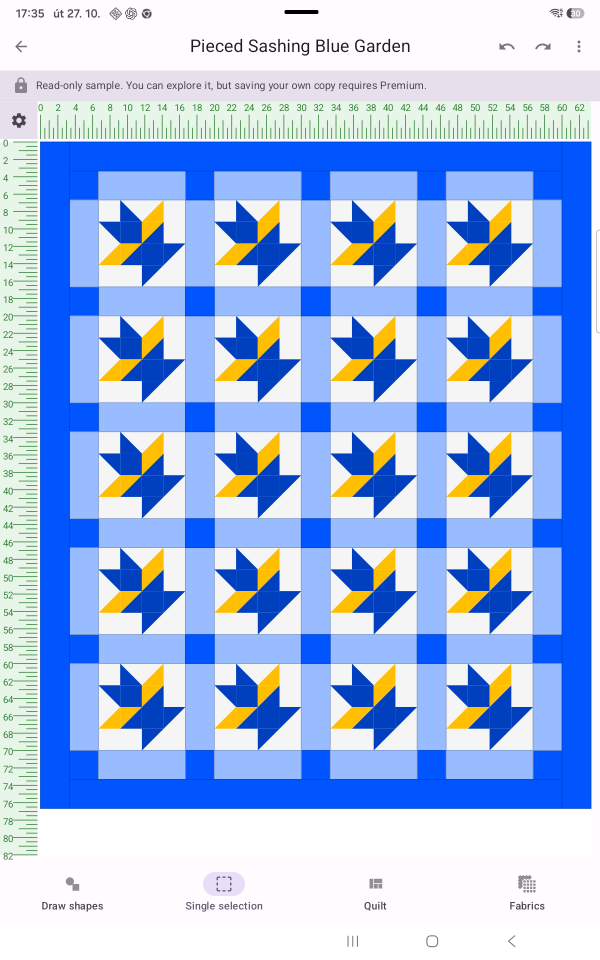
Use your own quilt or make an editable copy for your design.
Prepare photographs and open the panel
First add photographs to the Fabric Stash. In the fabric form, check the physical width of the photographed sample. Together with the quilt dimensions, it sets the scale of the print in your design. See the fabric photo guide.
In the quilt editor, clear the patch selection and choose Fabrics in the tool bar. The panel opens with By colors and By fabrics tabs. If Fabrics is missing, check that you are editing a quilt and no patches are selected.
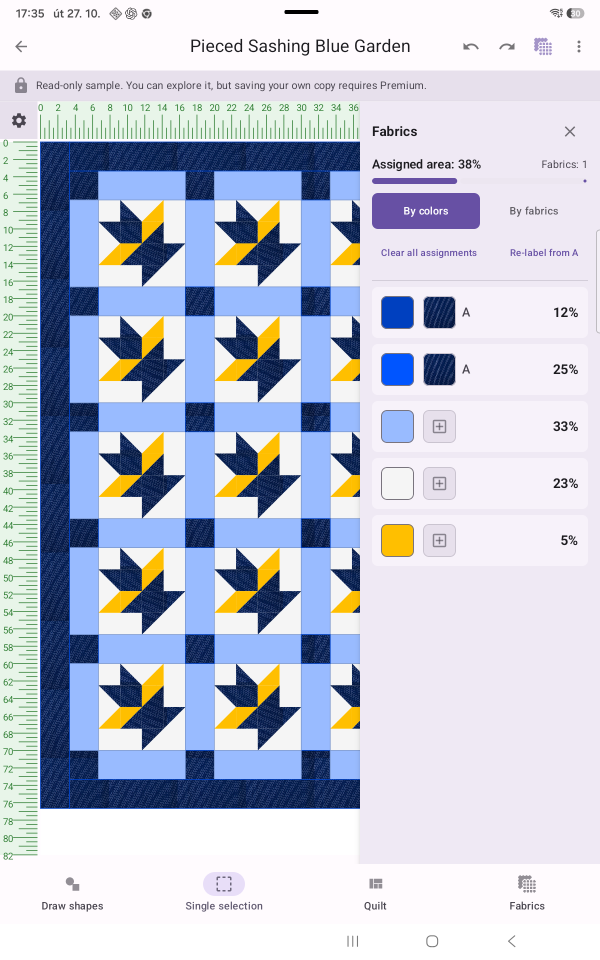
Assign a fabric to one color
- Choose By colors in the panel.
- Find the desired color row. The color swatch highlights that color in the design; the space next to it holds the fabric preview.
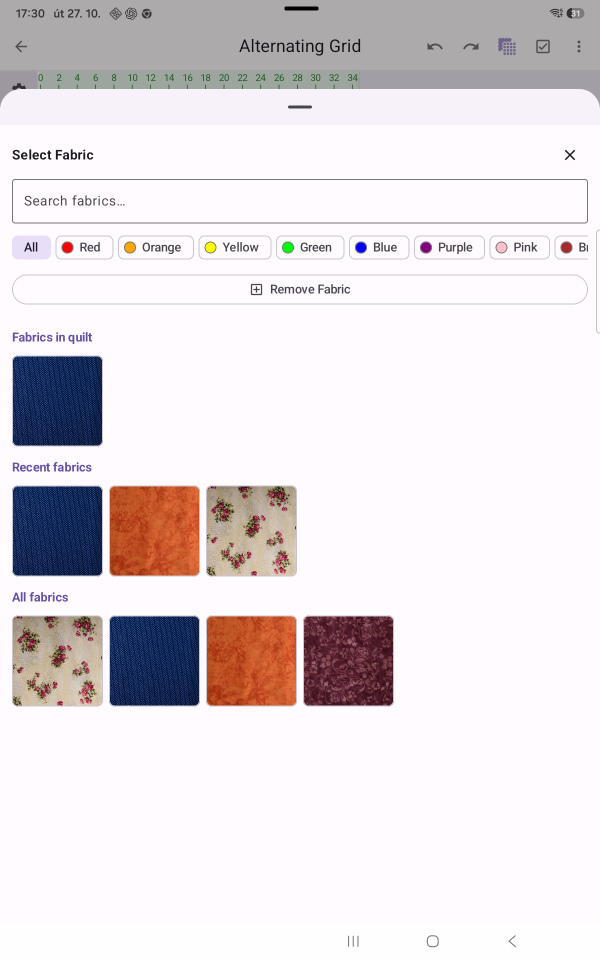
- Tap the fabric space for a color that has no assignment yet.
- In Select Fabric, tap a photograph. Open search with the magnifying glass in the dialog header; searching ignores diacritics. Hiding search keeps your text in a Search: ... summary chip. Tapping the active color chip again or tapping Clear filters turns off the color filter without clearing search text.
- Continue with other colors, then save the quilt's content using the top bar.
Search by fabric name, manufacturer or collection. The color filter uses the fabric's recorded colors. Without filters, the picker may show Fabrics in quilt, Recent fabrics and All fabrics groups.
Assigning a photograph preserves the original design color. You can later switch the preview back to colors or remove the fabric.
Change an assignment or rotation
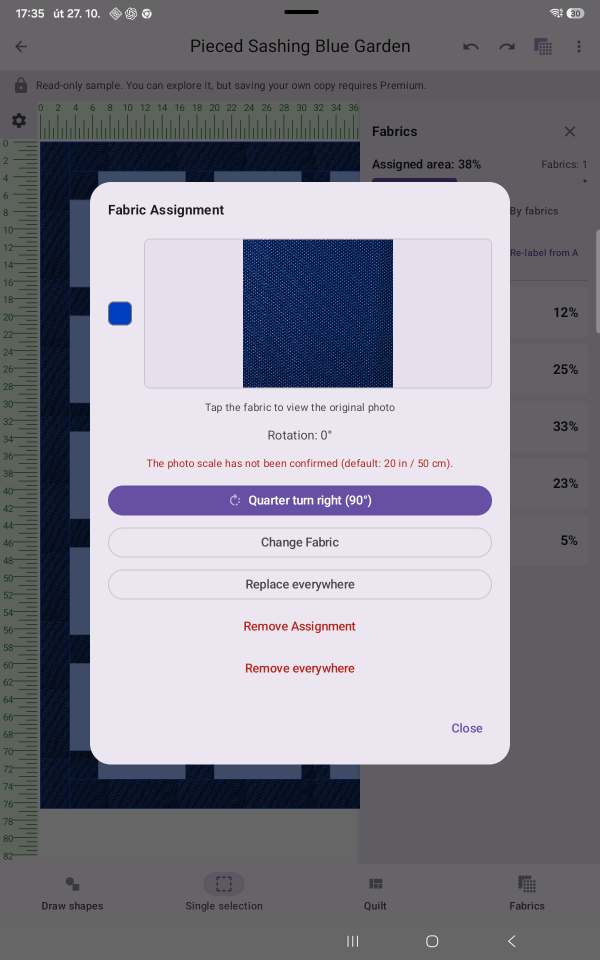
Tap an assigned preview in By colors to open Fabric Assignment:
| Action | What it changes |
|---|---|
| Quarter turn right (90°) | Turns the fabric photograph a quarter turn clockwise for this color across all its occurrences. |
| Change Fabric | Opens the picker to choose another fabric for this color. |
| Replace everywhere | Replaces this fabric in all its assignments in the quilt, including embedded blocks. |
| Remove Assignment | Removes the fabric assignment from this color only. |
| Remove everywhere | Removes this fabric from every color using it in the quilt. |
For example, if two different colors share one fabric, Change Fabric changes only the color whose detail you opened. Replace everywhere changes the fabric for both colors at once. The original design colors are preserved. Closing the picker without choosing a new fabric makes no change.
Fabric rotation changes the direction of the print, such as stripes. It differs from rotating an embedded block, which rotates the whole patchwork pattern.
Tap the large photograph in the detail dialog to open the original image. If the print scale looks wrong, check the sample dimensions in the fabric form. Prepare any required cropping or photo adjustments in an external editor, as described in the photography guide.
If the detail dialog warns that the photo scale has not been confirmed, check and save the actual width of the photographed sample. Without the correct value, the print size in the quilt may not match the real fabric.

Fabric groups and highlighting
By fabrics groups colors using the same fabric. Letters A, B, C… identify fabrics; several colors assigned to one fabric share its letter. Re-label from A gives used fabrics a consecutive set of labels again.
- In By colors, tap a color swatch to highlight positions containing that color.
- In By fabrics, tap a fabric card to highlight positions using it.
Other positions are dimmed. Tap the same color or fabric again to cancel highlighting, or close the panel. This helps you find parts of the design; it does not select patches for recoloring.
Preview, coverage and removing assignments
At the top of the Fabrics panel, use the Show fabrics switch.
| Setting | What appears on the canvas |
|---|---|
| On | The assigned fabric photographs. |
| Off | The original design colors, including colors inside inserted blocks. |
Switching the view preserves fabric assignments and rotations. Turn it back on to see the photographs again. When the quilt has assigned fabrics, Show fabrics / Hide fabrics in the top bar controls the same setting. Both controls stay in sync.
Compare the original block colors
Temporarily turn off Show fabrics to compare shades across inserted blocks. Fabric photographs will no longer cover their design colors. See working with colors for help matching shades.
Assigned area shows how much of the quilt's area has a fabric assignment. Row percentages show each color's or fabric's share. This is not a yardage calculation: it does not tell you how much fabric to buy or how much is left in your stash.
Clear all assignments removes fabrics throughout the quilt. Colors, patches and embedded blocks are preserved, and fabrics are not deleted from the stash. Use Undo to reverse an unwanted assignment change.
If the panel shows Fabric unavailable, check the fabric in your stash or assign another available photograph to that color.
Editor overview · Arrange a quilt · Fabric Stash · Fabric photography