Home screen
Home provides quick access to your designs and ideas for your next project. Open it by choosing Home in the app's main navigation.
When you are getting started
If you do not yet have a saved block or quilt of your own, Home focuses on templates and creating a new design. In Create your first quilt from a template, select a prepared layout to start with. Show all opens the template gallery.
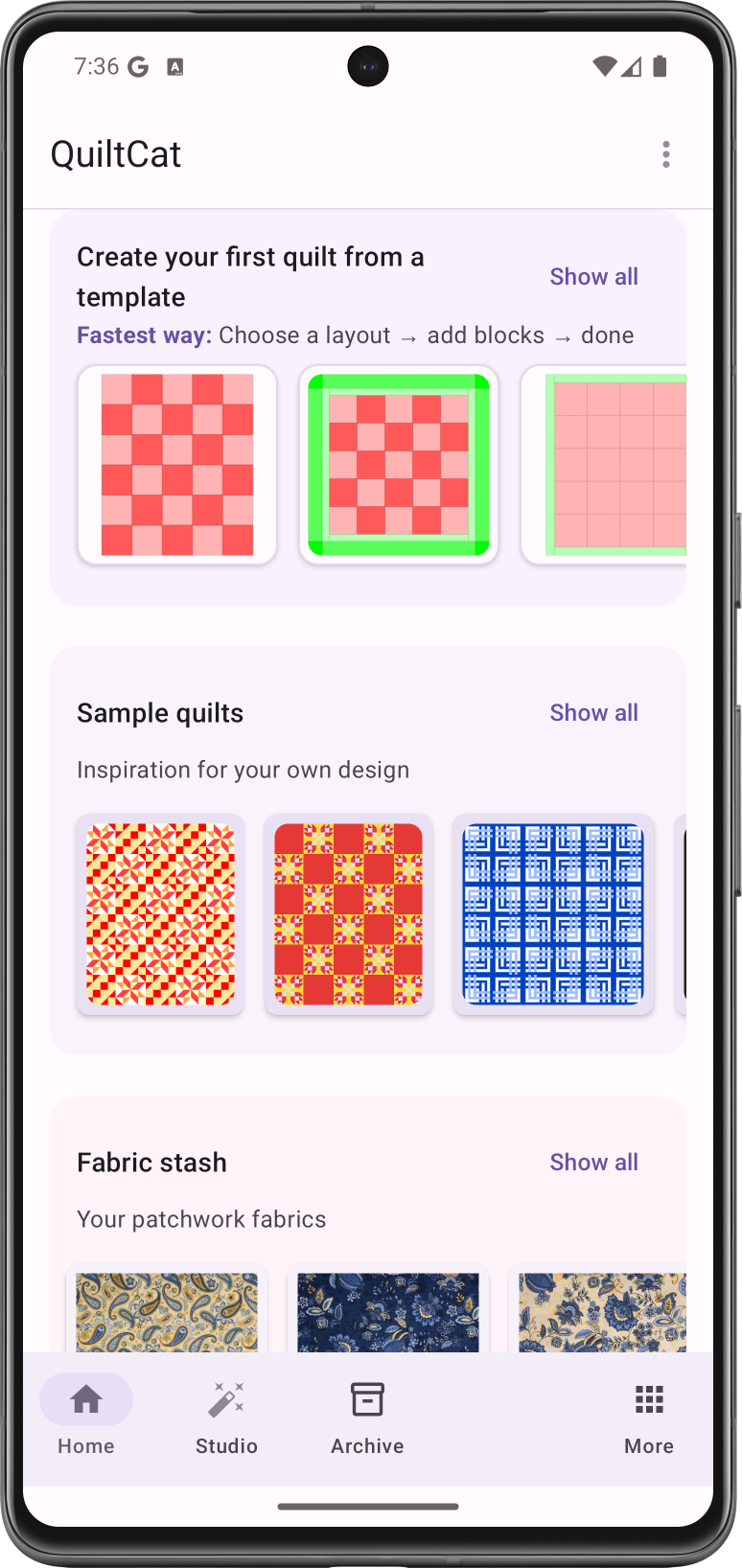
Once you have saved designs of your own, sections for continuing your work appear as well. Projects from older versions in Archive are not included in this overview.
Continue a design
Continue shows your most recently edited block or quilt. Tap its card or Continue editing to open it in the editor.
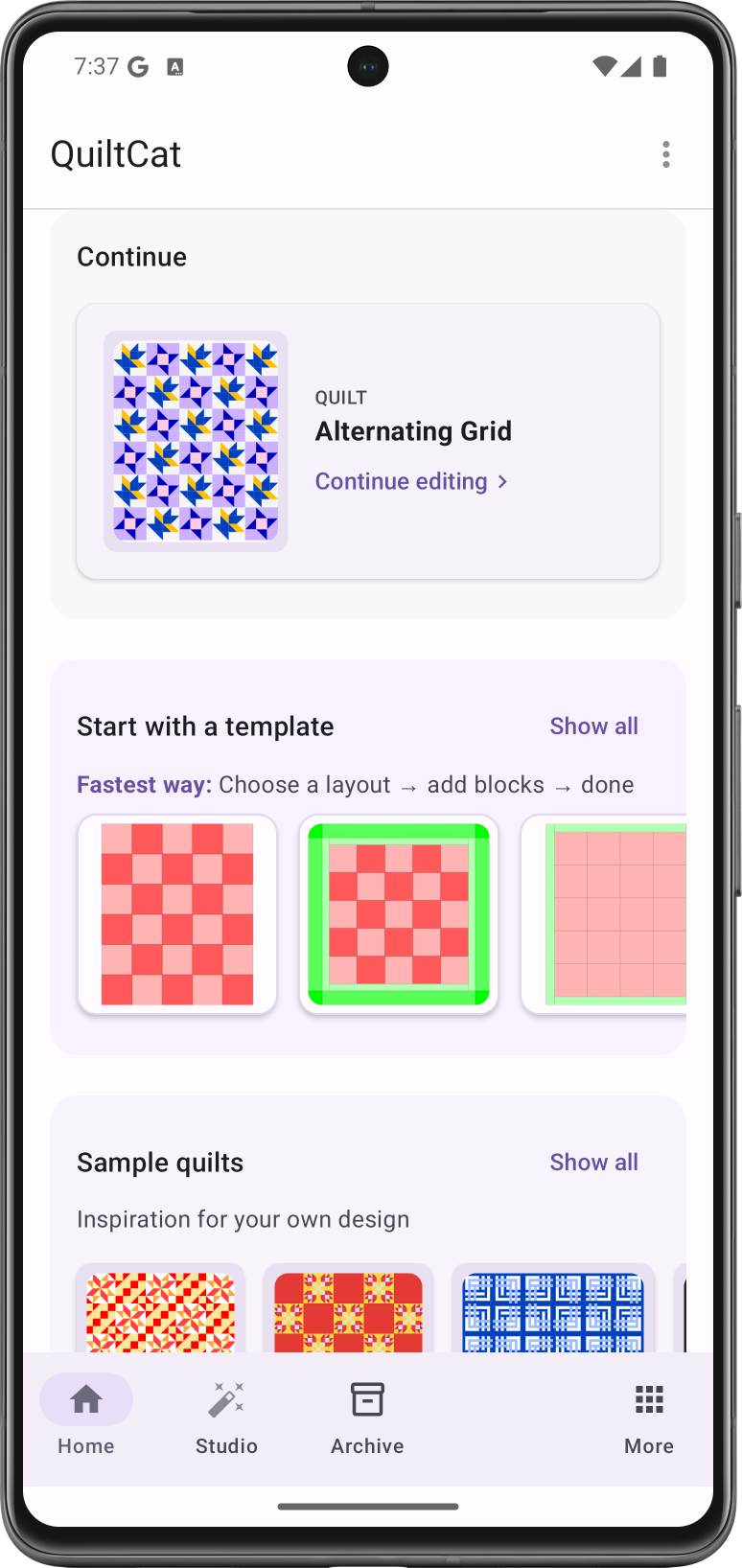
If you have more than one design of your own, Recently edited shows other designs, ordered by their last edit. Tap the preview you want to work on. This is not a list of every project; find other designs in Studio.
Create a new design
You can also start a new design from Home:
- New Block / Create Block opens the editor to draw your own block.
- New Quilt / Create Quilt opens the size selection for a new quilt.
- A quilt template provides a prepared layout. Tap its preview in Create your first quilt from a template or Start with a template to create a new quilt based on it. Show all opens the full template gallery. When you have designs of your own, Home also offers Quilt from Template.
Action labels depend on whether you already have saved designs: initially they appear under Create from scratch, and later under Create new.
Want to reuse the same layout for several projects? See how quilt templates and your own starting designs work.
For the difference between a block and a quilt, see the basic concepts in the help introduction.
Sample quilts
Sample quilts provides inspiration. Tap a preview to open the design in the editor. Show all takes you to the quilt gallery.
Samples are separate from your recently edited projects. This section is hidden when no samples are available.
Your fabrics
If your stash contains fabrics, their previews appear in Fabric stash. Tap a fabric to open its editing form. Show all opens the Fabric stash, where you can search, add and manage fabrics in batches.
This section is hidden if your stash is empty.
Home, Studio and Archive
- Home provides quick access to your work, new designs and inspiration.
- Studio provides access to current designs and galleries of blocks, quilts and templates.
- Archive contains the original tools and older blocks, quilts and fabrics. Home also links to them under Archive.
Phone and tablet controls
On a phone, the main navigation is at the bottom; on a tablet, it is in a side panel. The Home layout also adapts to the available space. Swipe sideways to see more previews in a row, and scroll vertically to reach other sections.
Change the interface language and light or dark appearance in App settings.