Rotate blocks and mirror a design
There are two ways to rotate an embedded block. At quilt level, change only its orientation in a position; the block pattern itself stays unchanged. Inside the embedded block editor, rotate its patches and change the pattern itself. The results may look the same at first, but they are different edits.
What do you want to change?
| Goal | Where to work |
|---|---|
| Change only a block's orientation in one or more quilt positions | Selected-patch panel → Actions |
| Rotate or mirror the embedded block's actual pattern | Fill → Edit embedded block, then Block → Layout → Transform inside its editor |
| Rotate or mirror your whole personal block | Clear the selection → Block → Layout → Transform |
At quilt level, the quilt records an instruction for the selected position, such as “display this block rotated a quarter turn (90°).” The patches inside the block and their coordinates in its grid stay unchanged. The position and shape of the quilt patch also stay unchanged. A position without an embedded block has nothing to rotate this way; this is not a geometry tool for a plain colored square or triangle.
Keep the fabrics right side up
Think of a sewn block placed right side up. You can rotate it and its front still faces you. Turning it over to obtain a mirror image would reveal the wrong sides of the fabrics. This is why the quilt-level control offers rotation. To create a mirrored pattern while keeping the fabrics right side up, change the arrangement of the patches inside the block editor.
Rotate one block in a quilt
- Select a quilt position containing a block, for example using Single selection.
- Find Actions in the selected-patch panel.
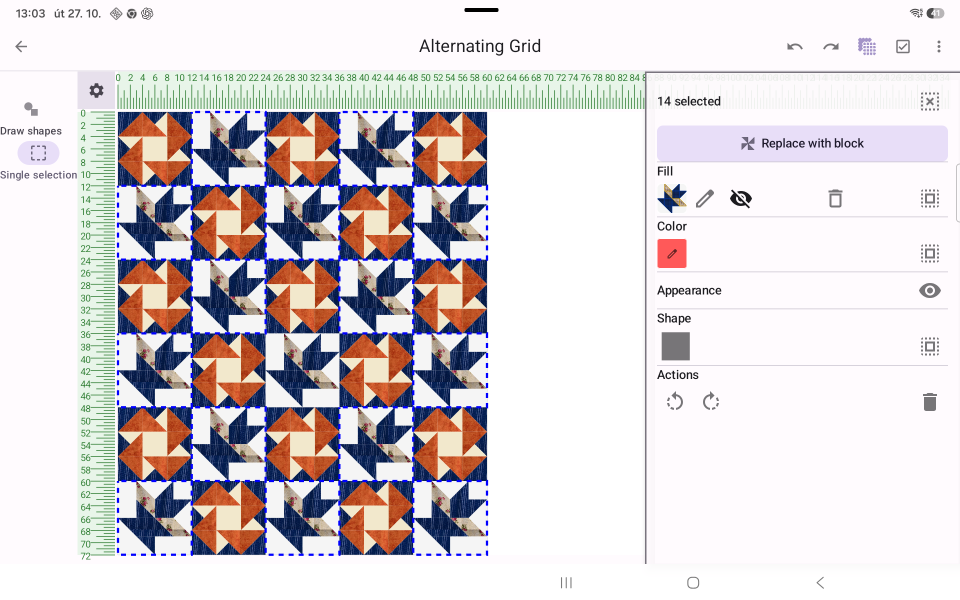
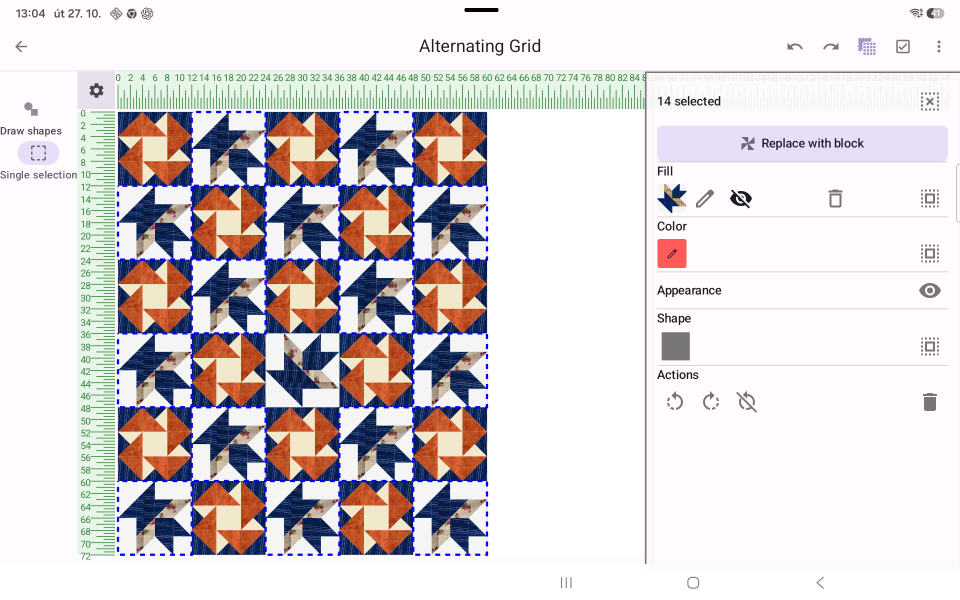
- Choose Quarter turn right (90°) or Quarter turn left (90°). Each tap turns the embedded pattern a quarter turn (90°).
- Check how it meets neighboring blocks. Tap again for another quarter turn.
The position stays in place and the embedded block's internal pattern is preserved. Other unselected blocks and the source block in the gallery are unchanged.
Depending on available features, Reset rotation may also appear. It sets the rotation recorded for selected positions to 0°. It does not just undo the previous step or rearrange patches inside a block.
Rotate several blocks together
First select the positions using multiple selection or Same color. Template colors can identify related positions for this purpose, even when they are not next to one another.
Then use rotation under Actions as you would for one position. Each selected pattern turns within its own position. The selection does not rotate as one large unit, and positions do not swap places.
If the blocks started at different angles, the same quarter turn is added to each. For example, 0° and 90° become 90° and 180° after rotating right. Use Reset rotation to give them the same starting orientation.
Select same block in the Fill section currently also considers rotation. To rotate differently oriented instances together, select them manually or by their underlying color. See Embedded blocks in a quilt.
Rotate the embedded block's actual pattern
Want to change the arrangement of patches inside an embedded block?
- Select one quilt position or several positions containing the same pattern.
- Under Fill, tap the pencil, Edit embedded block.
- Inside its editor, clear the patch selection and open Block → Layout → Transform.
- Choose a rotation or flip. The patches now actually move within the block grid and their coordinates change.
- Choose Save nested block. The revised pattern returns to the positions selected before opening the editor. Then save the whole quilt.
Each position's rotation recorded at quilt level is preserved and applied to the revised pattern. The source block in the gallery and unselected quilt positions are unchanged. See Embedded blocks in a quilt for selection and returning changes.
Reset rotation does not undo a pattern edit
If you rotate patches inside the block editor, Reset rotation in the quilt does not remove that change. It only resets the orientation recorded for the quilt position; the edited pattern remains edited.
Rotation and mirroring inside the block editor
These controls are available when editing a standalone block and inside the embedded block editor. Try them on a square block with a recognizable direction. A symmetrical pattern may look unchanged.
- Clear the individual patch selection.
- Open Block and find Transform on the Layout tab.
- Choose an action:
| Action | Effect on the whole block |
|---|---|
| Quarter turn right (90°) | Turns the design a quarter turn clockwise. |
| Quarter turn left (90°) | Turns the design a quarter turn counterclockwise. |
| Flip horizontally | Mirrors the left and right sides. |
| Flip vertically | Mirrors the top and bottom sides. |
Here you change the actual pattern by recalculating patch positions in its grid. For an embedded block, this changes its internal content rather than just the orientation recorded for its quilt position.
Mirroring a finished design versus drawing with symmetry
Flip changes the existing design. Automatic reflection while drawing adds symmetrical patches during a new stroke; it is a different workflow.
This example uses the prepared Barrister's block, so the read-only banner is visible. You can try the transformation while viewing it without overwriting the sample. To save the result as your own design, make a personal copy.
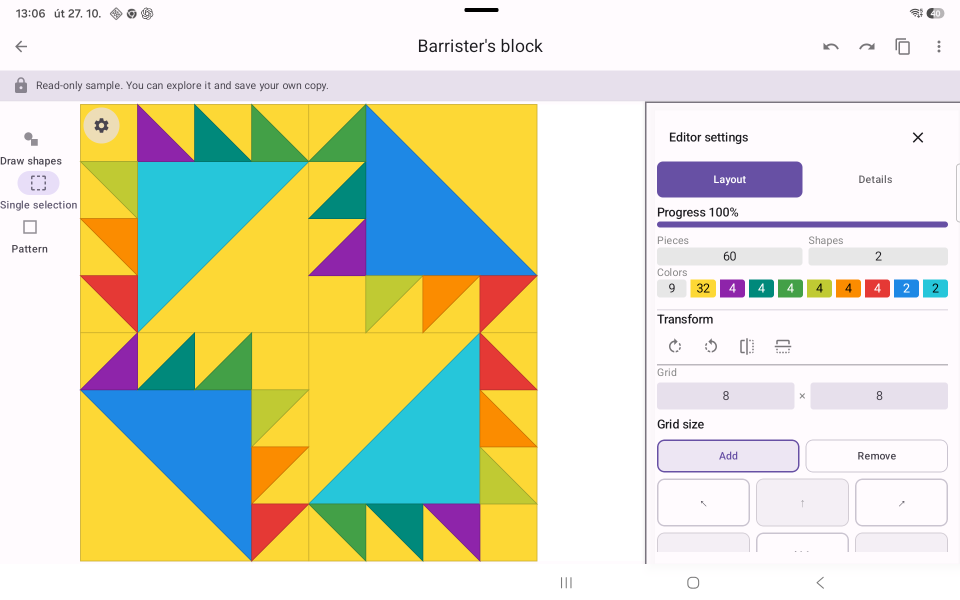
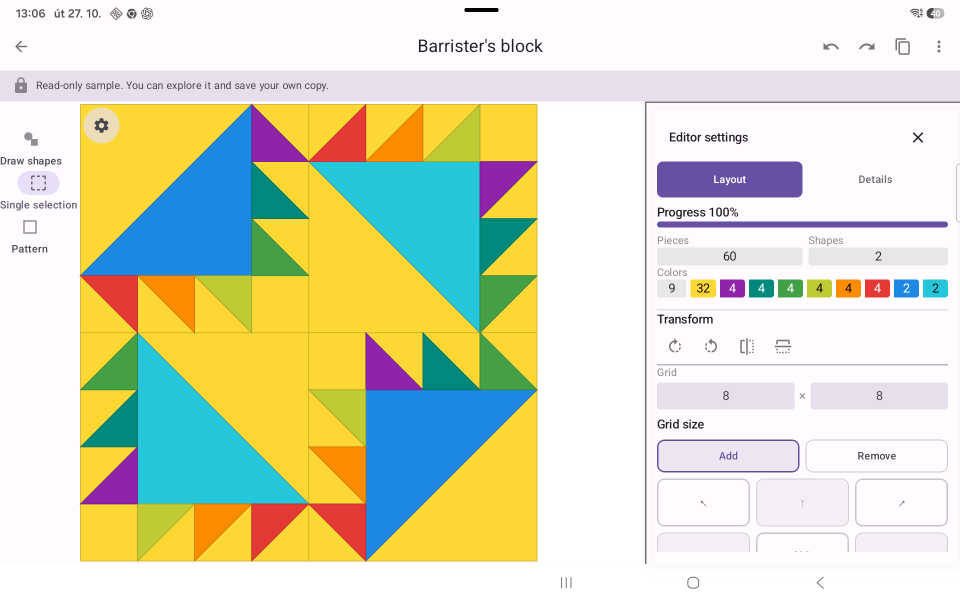
A short mirroring demonstration
Open or download the MP4 video (3.5 MB)
Undo an unwanted change and save the result
Use Undo in the top bar to reverse an unwanted rotation or flip. Reset rotation in the selection panel restores embedded blocks to their starting orientation; it does not undo a whole-design mirror operation.
Save the result using Save block / Save quilt. To keep an original quilt while exploring variations, make a gallery copy first.
For grid display, the minimap and repetition of new strokes, see Workspace settings and drawing with reflection.
Editor overview · Selection and colors · Embedded blocks · Draw your own block