Embedded blocks in a quilt
An embedded block is a pattern filling one position in a quilt. You can replace, rotate or temporarily hide it, or edit its individual patches. The same pattern can appear in several positions.
For the basic insertion steps, see Arrange a quilt from a template.
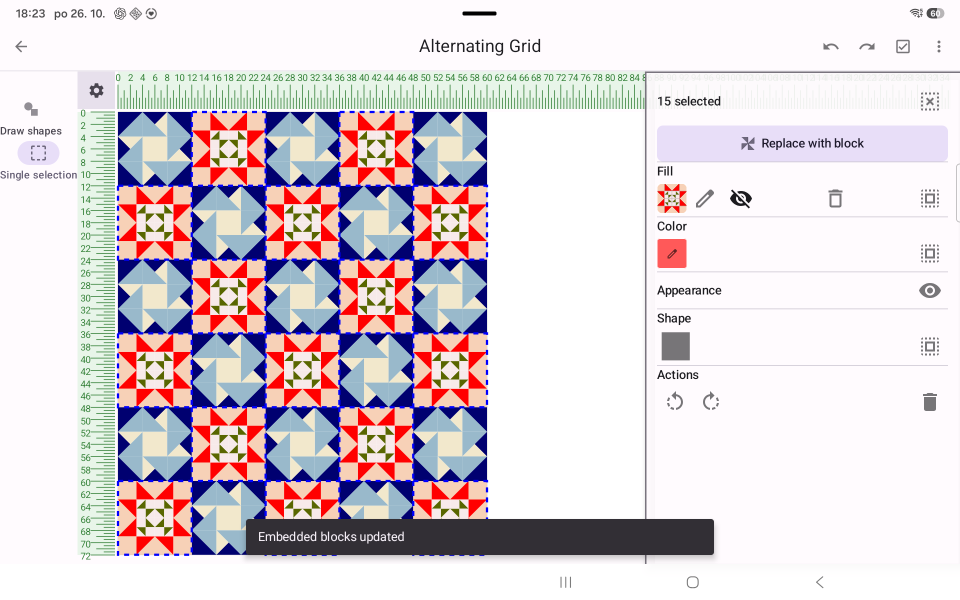
The screenshots follow a group replacement of fifteen blocks, then recoloring one group of patches inside the new pattern. They show a landscape tablet with the English interface.
Quilt positions and patches inside blocks
Normal selection in a quilt selects a whole position containing a block, not the triangles or squares inside that block. Open the embedded block editor to work on those individual patches.
A position keeps its underlying color after a pattern is inserted. You can still select related positions by the same color. That color does not set every patch color inside the block.
To use material photographs, follow Assign fabrics to quilt colors. Assignments also apply to matching colors inside embedded patterns.
Change one position or a group?
First select the positions you want to change:
- One position: use single selection.
- Several specific positions: select them in turn with multiple selection.
- A template color group: use Same color mode.
Select same block may also be available under Fill. Start by selecting one position; the button adds other occurrences of the matching pattern with the same rotation. To edit differently rotated occurrences together, select them using multiple selection or their underlying color.
Check the selection outlines and count before continuing. A matching pattern elsewhere in the quilt does not change merely because it looks the same: its position must be selected.
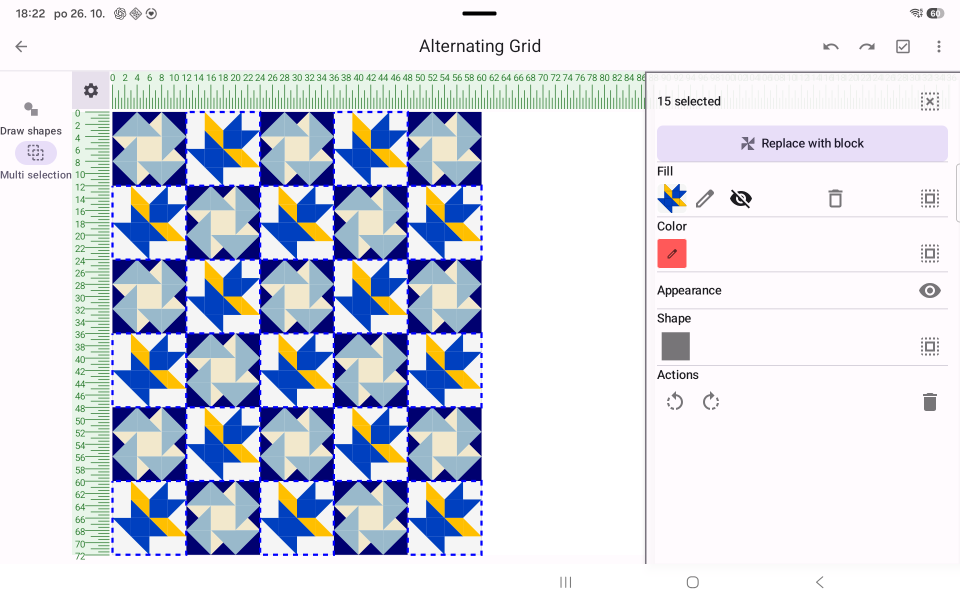
Replace or rotate a pattern
To replace selected positions, use Replace with block, or the pattern preview under Fill, and choose another available block. Currently this fills square positions. See the basic quilt guide for details on choosing a block.
In this example, choose a new pattern with pink and green triangles. It fills all fifteen selected positions at once. Keep this group selected for the shared edit that follows.
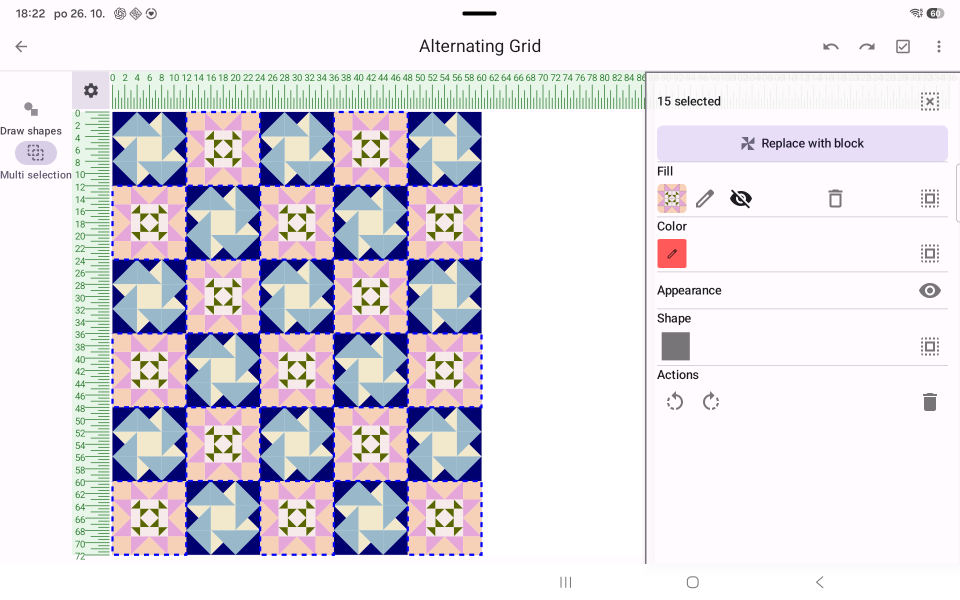
Under Actions, use the available controls to rotate embedded patterns left or right in quarter turns (90° each), or reset their rotation. This rotates the pattern inside each selected position without moving the positions themselves.
Replacing a block sets its default rotation, so rotate it again if needed. If the fill was hidden, also choose Show block.
Edit patches inside an embedded block
- In the quilt, select one or more positions containing the same pattern. Their rotations may differ.
- Under Fill, tap the Edit embedded block pencil.
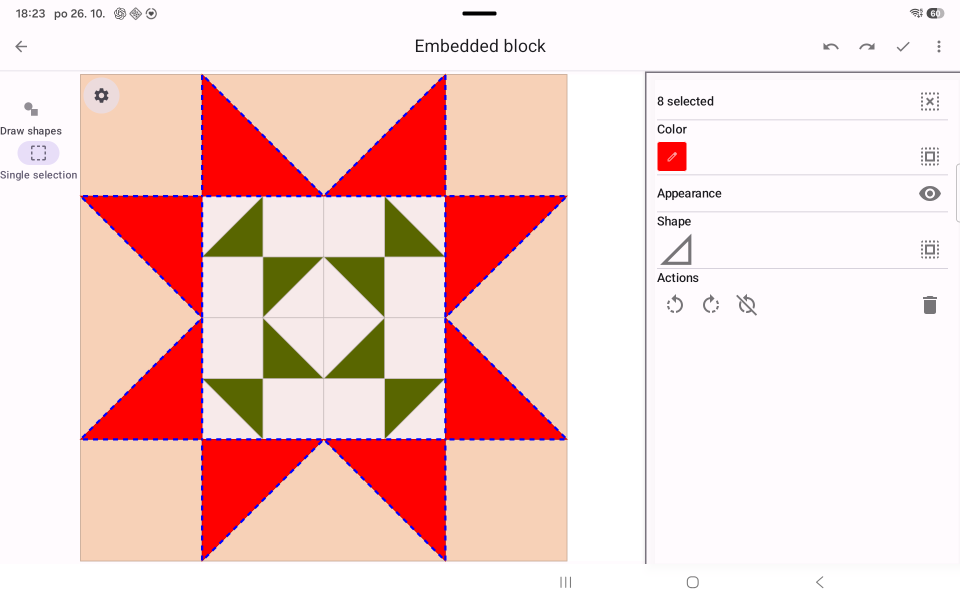
- The pattern opens on a separate canvas. Select, recolor and draw patches much as you would when editing your own block.
- Choose Save nested block in the top bar. You return to the quilt, where the edited pattern is applied to the selected positions.
- Check the result and save the whole quilt's content using the top bar.
The pencil is offered when all selected positions contain the same pattern and the option is available in the app. If the selection contains different patterns or includes an empty position, clear it and select only the intended positions sharing one pattern.
The original block in the gallery is preserved
You are editing content embedded in this quilt. This does not overwrite the original gallery block or unselected positions in the quilt. Changes return to the positions selected when you opened the edit; their individual rotations are preserved.
Applying block changes returns the edited pattern to the quilt in progress. It does not replace subsequently saving the quilt.
Rotation also has two levels. In the quilt panel, you change only the embedded block's orientation in its position. Rotating or mirroring inside its opened editor changes the actual arrangement of its patches. See Rotate blocks and mirror a design for both workflows.
Example: recolor all pink patches
With the fifteen positions still selected, use the pencil to edit their embedded block. You are now working inside the pattern, where individual triangles can be selected:
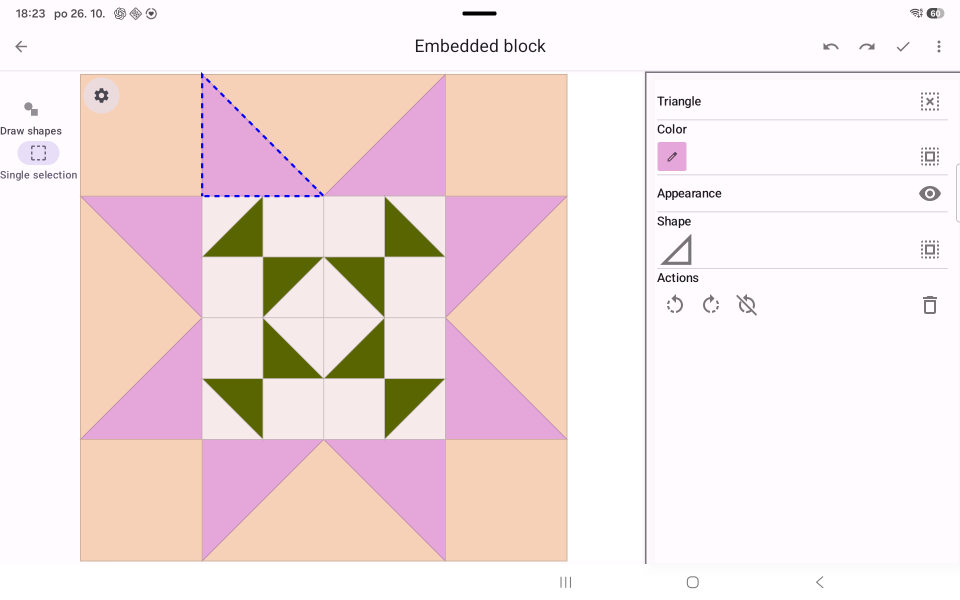
Tap the symbol next to Color to extend the selection to all pink patches. You do not need to change the tool bar mode or select each triangle individually. For the difference from the Shape button, see selection by color and shape.
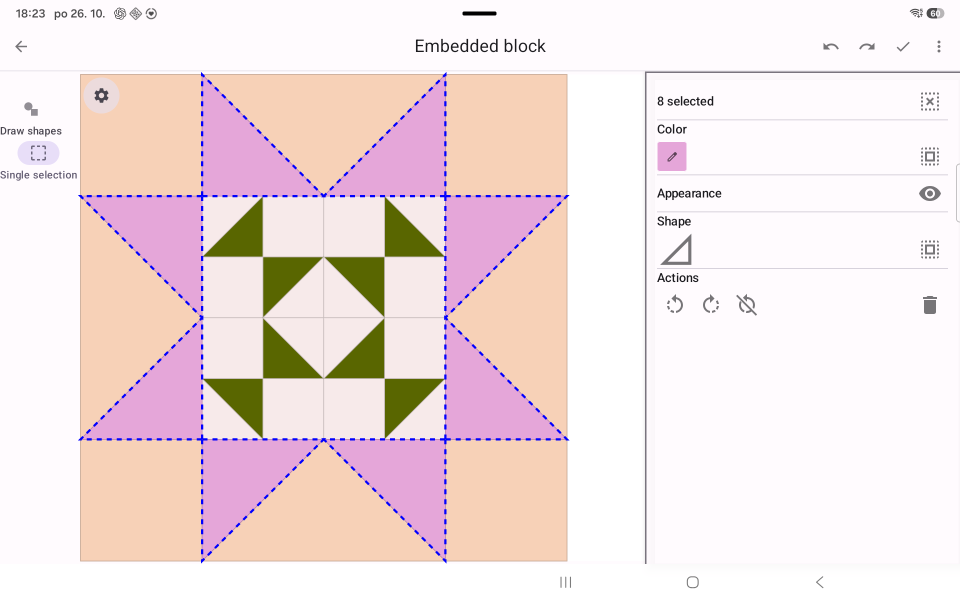
Tap the pink swatch under Color, choose red and confirm with Apply in the color picker:
Hiding is different from removing
Distinguish these actions under Fill:
| Action | Result |
|---|---|
| Hide block | Stops displaying the pattern. It remains in the position and can be shown again. |
| Show block | Displays the hidden pattern again. |
| Remove fill | Removes the embedded pattern from selected positions, keeping the positions and their underlying colors. |
The bin under Fill removes the pattern. Delete under Actions removes the selected quilt patches themselves. Check which panel section you are using before tapping.
Use Undo in the quilt to reverse an unwanted replacement, removal or applied embedded block edit.
For saving, copies and image export, see Save, copy and share a design.
See Rotate blocks and mirror a design for the difference between rotating patterns in selected positions and changing the whole design.
Editor overview · Arrange a quilt · Selection and colors · Block Gallery