Quilt Gallery
The Quilt Gallery contains your saved designs and sample quilts for inspiration. Return to a quilt in progress or make a copy as the starting point for another project.
Open it from Studio with Browse all quilts. On Home, Show all in the sample quilts section also opens this gallery.
Your quilts and samples
- My quilts contains your saved designs. You can continue editing them or make copies.
- Sample quilts are for viewing and inspiration. To customize a sample, make an editable copy; the original cannot be edited directly.
Tap a preview to open the actions for that quilt. Unlike tapping your quilt in Studio, this does not open the editor immediately.
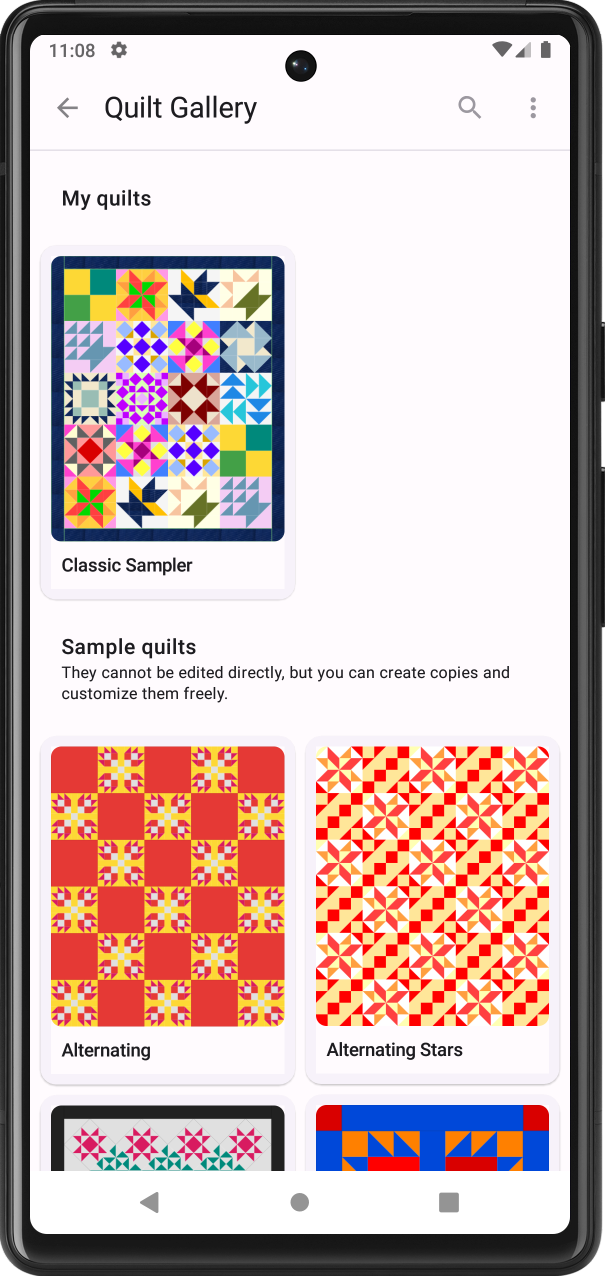
Continue a design
- Tap your design under My quilts.
- Choose Edit.
- Continue in the editor and save your changes.
This edits the original quilt. To preserve it while trying another variation, make a copy first.
For a sample quilt, choose Open in view mode to look at the design without editing it.
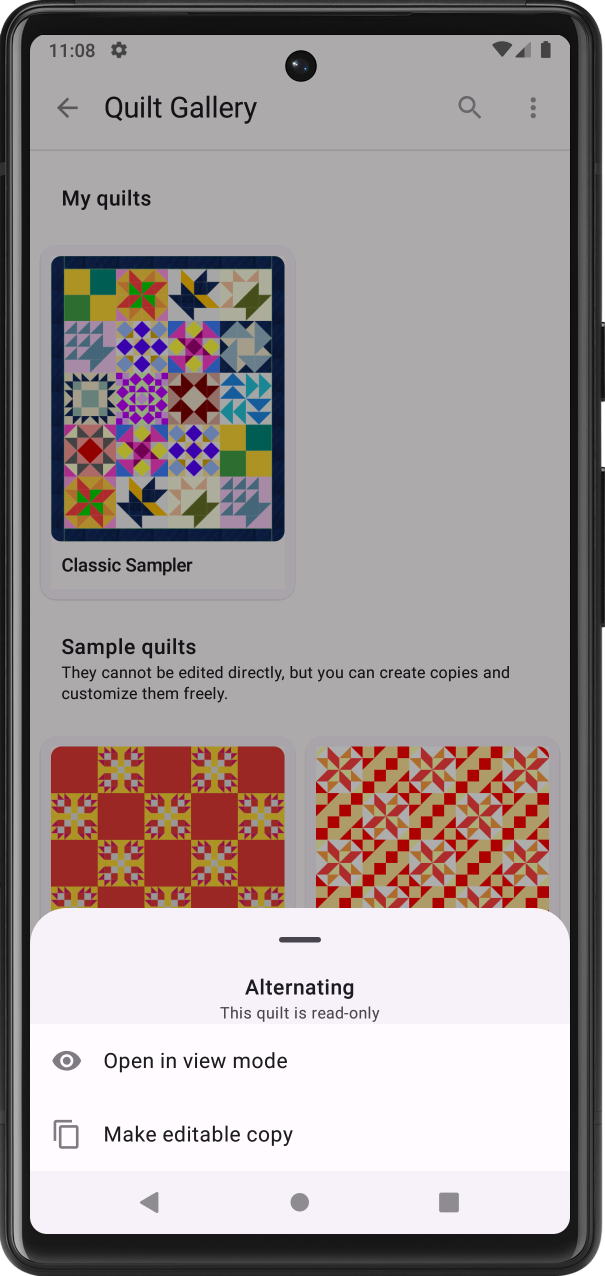
Make an editable copy
A copy is useful for your own version of a sample quilt or another project based on your favorite layout.
- Tap one of your quilts or a sample quilt.
- Choose Make editable copy.
- Find the new design under My quilts, with (copy) added to its name.
- Tap the copy and choose Edit. In the editor, name it for your new project and save your changes.
The copy is saved to the gallery when created; the editor does not open automatically. The original quilt is preserved.
See Quilt templates and your own starting designs for more about reusing a design.
Find a quilt
Tap the magnifying glass in the top bar and enter part of a name. Search includes both your quilts and samples, ignores diacritics and letter case.
The cross in the search field clears the search text. The back arrow in the top bar hides search without clearing your query. An active query appears in a summary chip (Search: ...) below the top bar. Tap the summary text to reopen search, or tap its cross to clear the search query. If no results match, tap Show all to reset search.
New quilt
Choose New Quilt from the three-dot menu, then choose the dimensions and grid for your new design.
To start with a prepared layout, use the Quilt Template Gallery. That gallery offers templates for new designs; the Quilt Gallery contains saved personal and sample quilts.
To create a design from a prepared layout, see how to fill a template with blocks.
On phones and tablets
Previews are arranged in columns to fit the screen width. A wider display or landscape orientation shows more previews side by side. Scroll vertically to see more quilts.
For saving, copies and image export, see Save, copy and share a design.