Fabric stash
Keep photographs and details of your fabrics together in the stash. Add a single fabric with its details, import several photographs at once, and complete their details later. You can then use the photographs when choosing fabrics for a quilt.
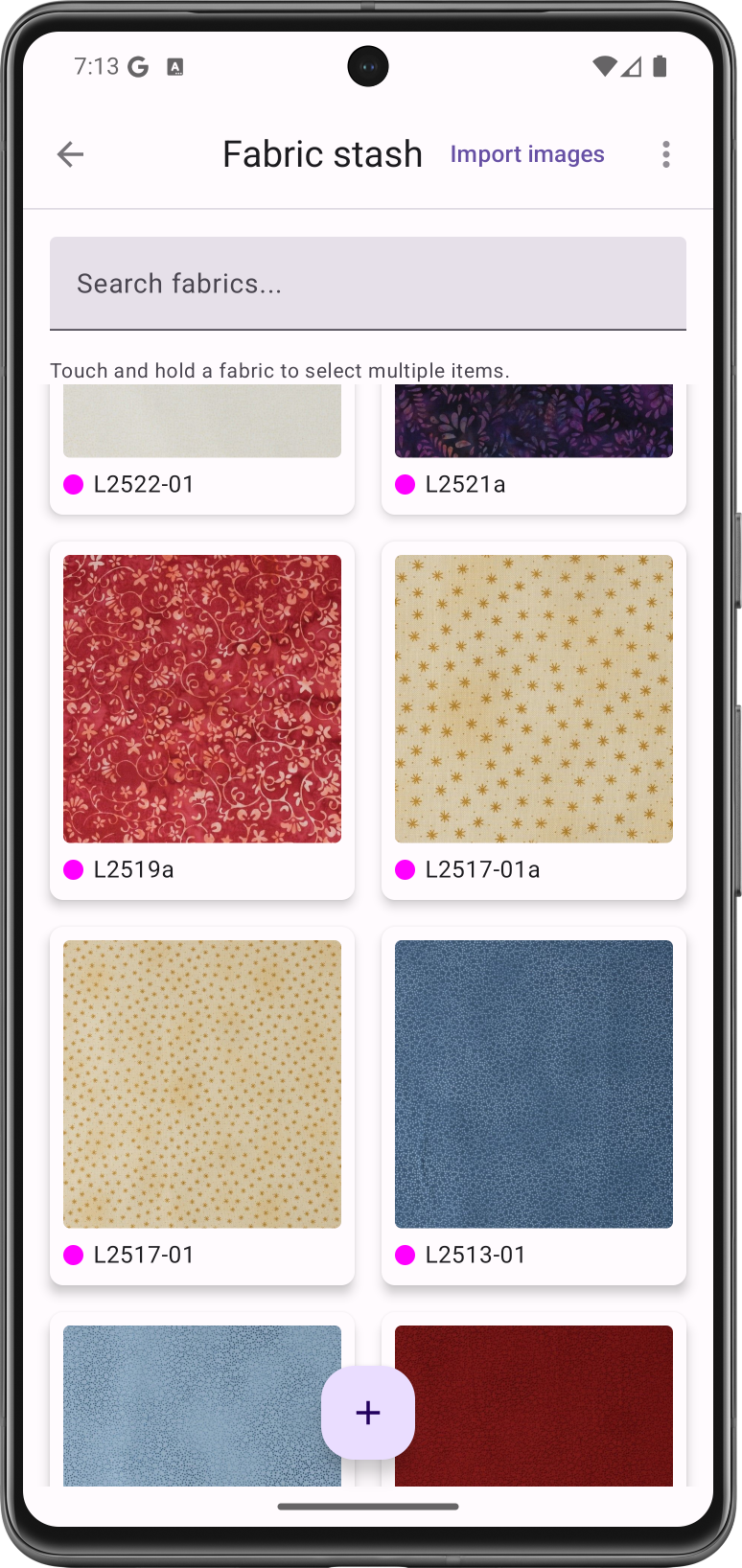
Browse and search
Fabrics appear in a grid. Open search by tapping the magnifying glass in the top bar. Type part of a fabric name, manufacturer or collection. Search ignores diacritics and letter case.
Hiding the search bar does not clear your query; an active query appears in a Search: ... summary chip below the top bar. Tap the summary chip to reopen search, or tap its cross to clear the search text.
Filter by color
Scrollable color tabs with color swatches and fabric counts appear below the top bar.
- All: Displays your complete fabric stash without any color filter.
- Color tabs: Show only colors currently present in your stash.
- Clear color filter: Return to the full list by tapping All, tapping Clear filters, or tapping the active color tab again. Clearing a color filter does not affect your text search.
Tap one of your fabrics to open its editing form. Confirm changes with the check mark in the form's top bar.
Add one fabric
Tap +. In the fabric form, enter a name, select a photograph and optionally fill in the manufacturer, collection, primary color, quantity and dimensions. Selecting a new photograph automatically suggests its primary color.
If you plan to use the photograph in a quilt design, check the physical sample width as well. See How to prepare a fabric photo.
Import several photographs
- Choose the Import images icon (photo library icon) in the top bar.
- Select fabric photographs in the system picker and confirm your selection.
- Wait for the import to finish. The app shows progress and reports the number of successful and failed imports.
Each image creates a separate fabric. Its name comes from the file name without the extension; if unavailable, the app supplies a fallback name. A failed image does not prevent the others from being processed. After a successful import, search is cleared so the new fabrics are visible.
The app automatically determines the primary color of each fabric from its photograph. If the color cannot be determined reliably, it defaults to Multicolor. Quantity is set to 0. The photograph does not supply manufacturer, collection or physical dimensions. Open each fabric to complete its details, especially the physical width of the photographed sample.
The app automatically protects your stash against duplicate imports: if you select a photograph that already exists in your stash (or is selected twice in the same batch), the import detects it and avoids creating a duplicate.
Select several fabrics
Touch and hold one of your fabric thumbnails to enter selection mode. The top bar shows the number selected. Selected fabrics have a check mark in the corner of their thumbnail. Tap other fabrics you own to select or deselect them.
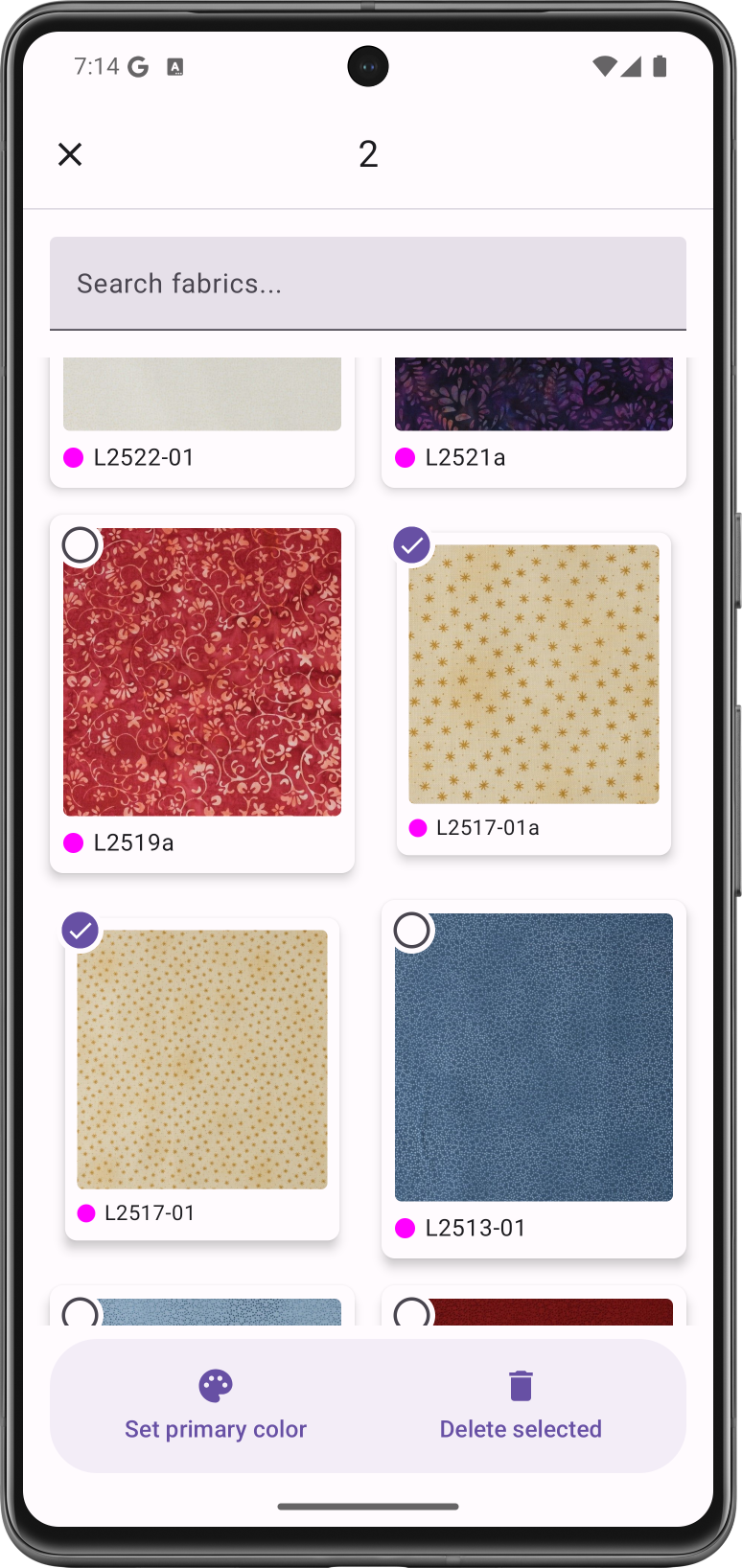
In this mode, tapping does not open the editing form. Exit selection with the cross in the top bar or the Back button. Read-only fabrics cannot be added to the batch selection.
Change the primary color
Choose Set primary color in the bottom bar, then choose a color for all selected fabrics. This changes the stored color category; it does not recolor the photographs.
After saving, use Undo in the briefly displayed message to restore each fabric's previous primary color.
Delete selected fabrics
Choose Delete selected. The app asks for confirmation and shows the number of fabrics. Only confirming removes them from the stash. Cancel the dialog to keep them.
Deleting removes the fabric from your stash, not the original photo in your gallery or cloud storage. The photo copy saved by QuiltCat may still remain on your device. Deleting a fabric also does not remove images you previously exported or sent to someone.
Use your prepared photographs in the editor by following Assign fabrics to quilt colors.
Add and edit a fabric · Photography guide · Home · Help introduction