Gestures and stylus controls
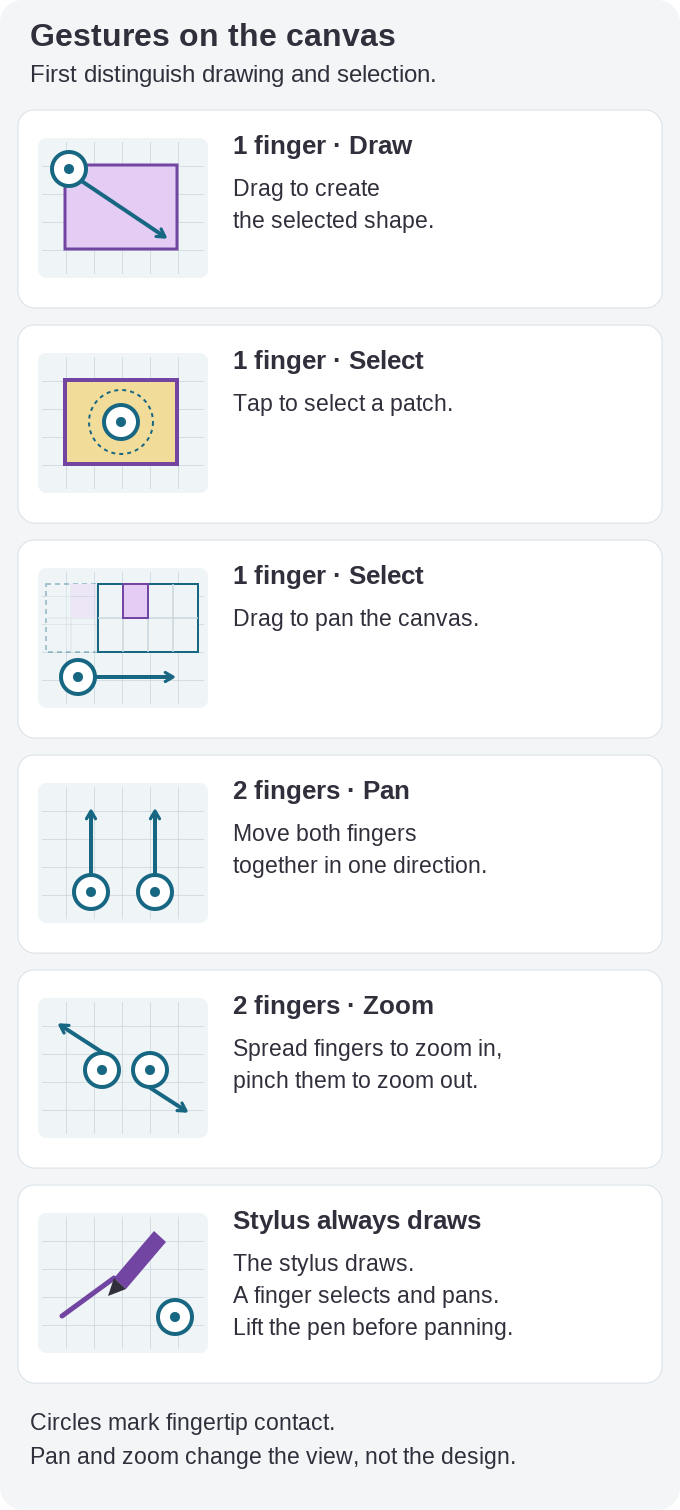
On the editor canvas, the same finger drag can draw a shape or pan the design. Its effect depends on drawing or selection mode and your stylus setting.
Controls at a glance
| Setting | Finger | Stylus |
|---|---|---|
| Stylus always draws off, Draw shapes mode | Draws the selected shape. | Draws the selected shape. |
| Stylus always draws off, selection mode | Tap to select; drag to pan. | Tap to select; drag to pan. |
| Stylus always draws on | Tap to select; drag to pan. | Draws without switching to drawing mode. |
Use two fingers to pan and zoom in either drawing or selection mode. If you are drawing with the stylus, lift it first.
Draw and select with a finger
When working without a stylus, leave Stylus always draws off.
- To create a patch, choose Draw shapes, select a shape and color, then draw it on the grid.
- To edit existing patches, switch to selection. A short tap selects according to the active mode: single, multiple or same color.
- A one-finger drag in selection mode pans the view. It does not move the selected patch within the design.
To pan while drawing with a finger without switching tools, use two fingers.
Pan and zoom with two fingers
Start on the canvas, rather than on a panel or its controls.
- Pan: place two fingers on the canvas and move them together in one direction.
- Zoom in: spread your fingers apart.
- Zoom out: pinch your fingers together.
You can pan and zoom in one gesture. These actions change only your view, not the quilt's physical dimensions, grid or patch positions.
Adding a second finger while drawing with a finger cancels the unfinished stroke and starts view navigation. Previously completed patches remain.
Lift both fingers when finished. Use Reset transform in the top bar to return to the initial view.
Stylus follows the selected tool
With Stylus always draws off, the stylus follows the same mode as your finger. In drawing mode it creates shapes; in selection mode it selects patches or pans the canvas.
This is useful when you want to draw and select with the pen itself. Switch modes in the tool bar.
Draw with the stylus, select with a finger
Enable Stylus always draws to alternate pen drawing and finger selection:
- Tap the gear beside the canvas. It is in the upper-left corner where the rulers meet, and remains available when rulers are hidden.
- In Workspace, under Controls, enable Stylus always draws.
- Choose your drawing shape and color.
- Draw with the stylus. After lifting it, use a finger to select patches or pan, or use two fingers to zoom.
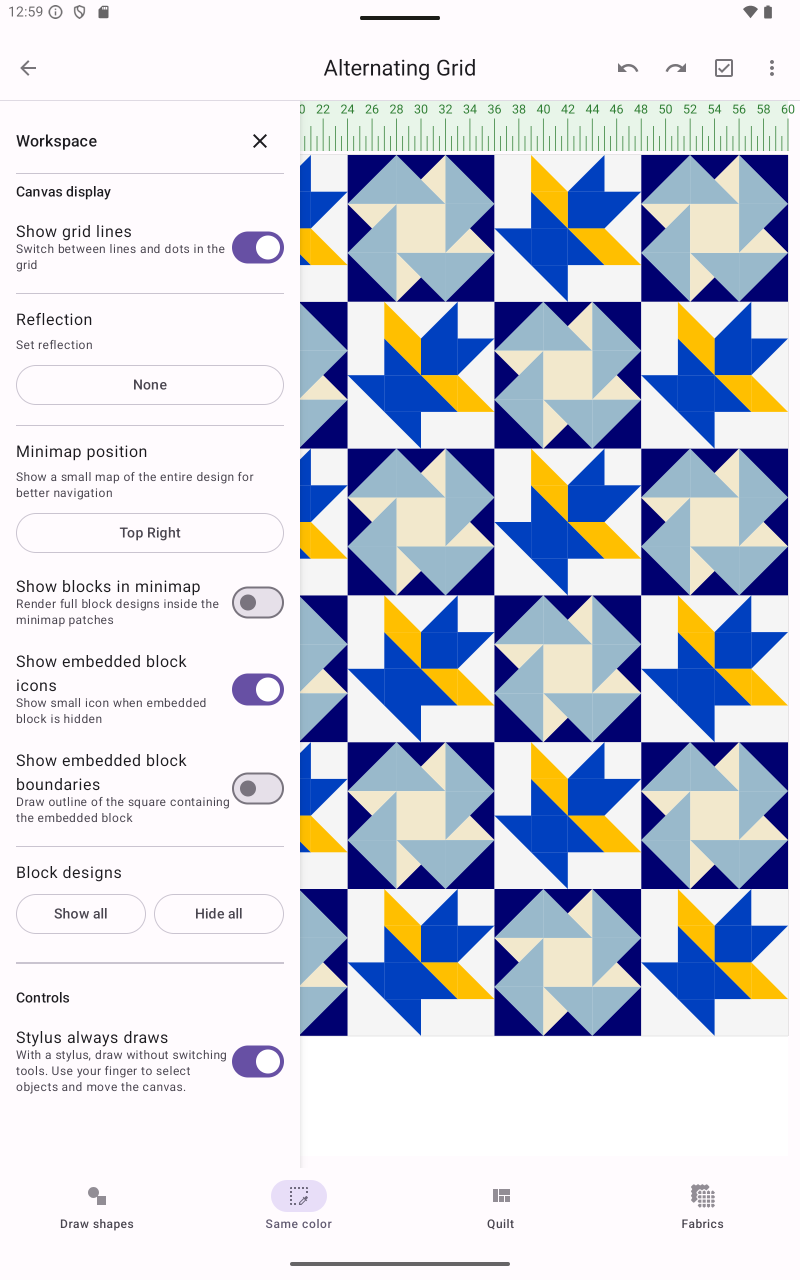
In this mode, a finger does not draw even when a drawing tool is selected. Selection still follows your chosen single, multiple or same-color mode.
Lift the pen first
During a stylus stroke, the editor ignores added touches for view navigation. Finish the stroke and lift the stylus before panning or zooming with your fingers. Avoid drawing with the pen and changing the view with your fingers at the same time.
On phones and tablets
Canvas gestures work the same way in portrait and landscape. On a phone, an open panel may cover part of the design; collapse or close it when you need more canvas space. A tablet offers more room to see the design and controls together.
For grid display, the minimap and repetition of new strokes, see Workspace settings and drawing with reflection.
Editor overview · Draw your own block · New quilt dimensions