Grid and physical dimensions
The grid determines where patch vertices can sit. Physical dimensions describe the quilt's intended size in centimeters or inches. Two-finger zoom only changes your view on screen.
The grid cell count is not the number of blocks in the quilt. One block can span several cells.
Find the settings
- Clear any patch selection using the icon in its panel header.
- Open Pattern or Quilt in the tool bar, depending on your design.
- Choose the Layout tab.
For a block, Grid shows the column and row counts. For a quilt, Grid and size also shows Quilt dimensions and Cell size. The availability of the additional Grid size and Grid density sections may vary with the app's available options.
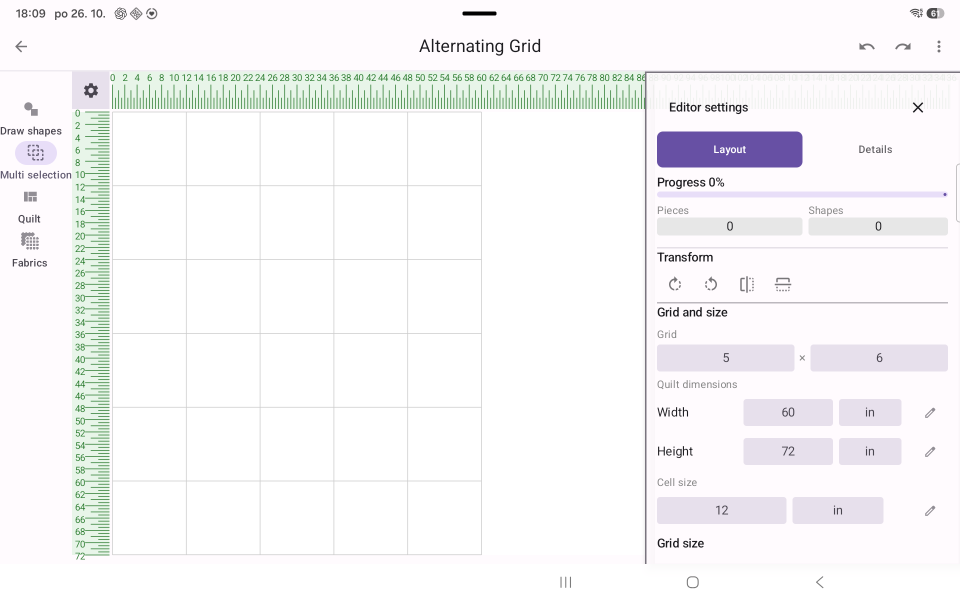
What do you want to change?
| You want to… | Use… |
|---|---|
| Make the same quilt larger or smaller while keeping its layout. | Edit Quilt dimensions or Cell size. |
| Draw finer details within the same canvas. | Grid density → Finer. |
| Add empty space beside or around the existing pattern. | Grid size → Add. |
| See a detail more clearly. | Two-finger zoom. |
Refine or simplify the grid
Under Grid density, choose:
- Finer 2× / 3×: divides each cell into two or three steps in both directions. Both column and row counts are multiplied; the appearance and layout of existing patches and the quilt's physical dimensions stay the same.
- Coarser 2× / 3×: reduces grid density by the chosen factor. This is only possible if every patch vertex can sit exactly on the new grid.
- Simplify grid: finds the coarsest common grid that preserves every patch exactly, provided the design's limits allow that simplification.
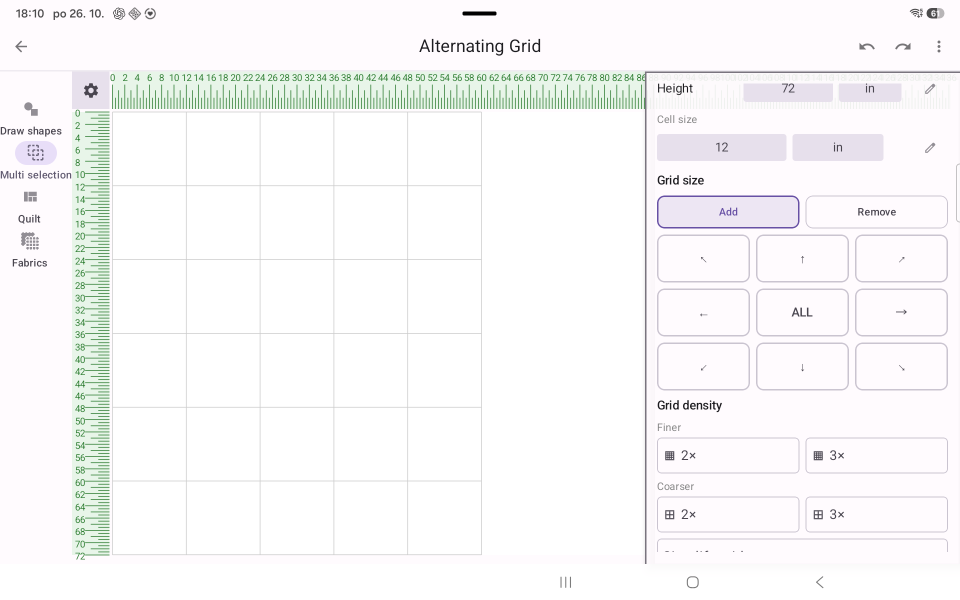
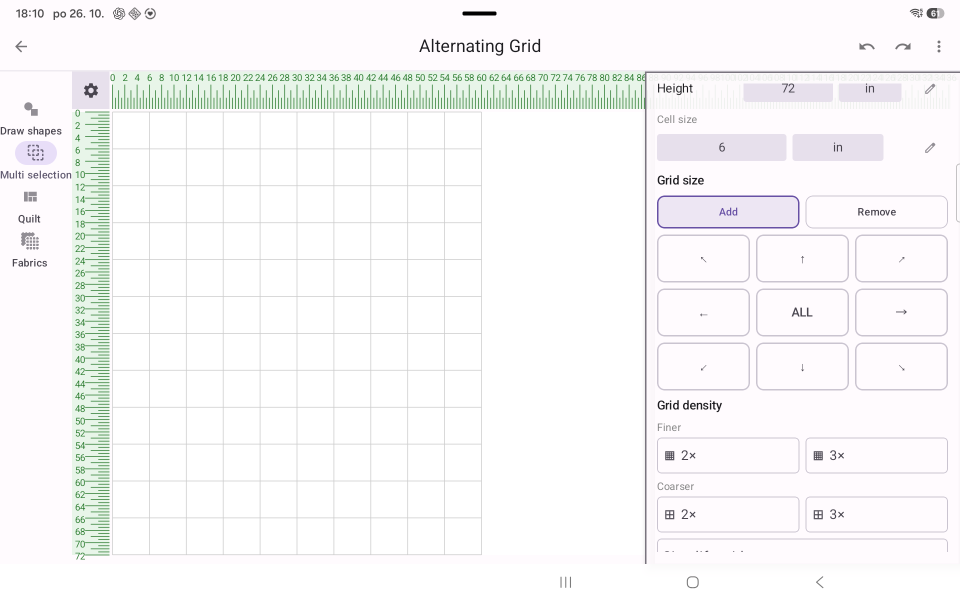
In this example, refining 5 × 6 → 10 × 12 keeps the quilt dimensions at 60 × 72 inches. Each step now represents 6 inches instead of 12. You can use the new points for further drawing; refining does not add patches itself.
If coarsening or simplification is not possible, the editor shows a message. It does not round patch vertices or move them to approximate positions.
Change the quilt's physical size
- Under Grid and size, tap the edit icon next to the width, height or cell size.
- Choose cm or in and enter a positive value.
- Check the calculated values. Entering a width calculates the height; entering a height calculates the width. Entering a cell size calculates both quilt dimensions.
- Confirm with Save. Before leaving the editor, also save the whole design's content using the top bar.
The column and row counts stay the same, and grid cells remain square. This preserves the quilt's aspect ratio. For a different aspect ratio, you also need to change the number of rows or columns.
The screenshots continue after refining to a 10 × 12 grid while keeping the 60 × 72-inch quilt dimensions. Each cell is now 6 inches. Entering 5 inches when editing Cell size gives calculated quilt dimensions of 50 × 60 inches. The column and row counts stay unchanged.
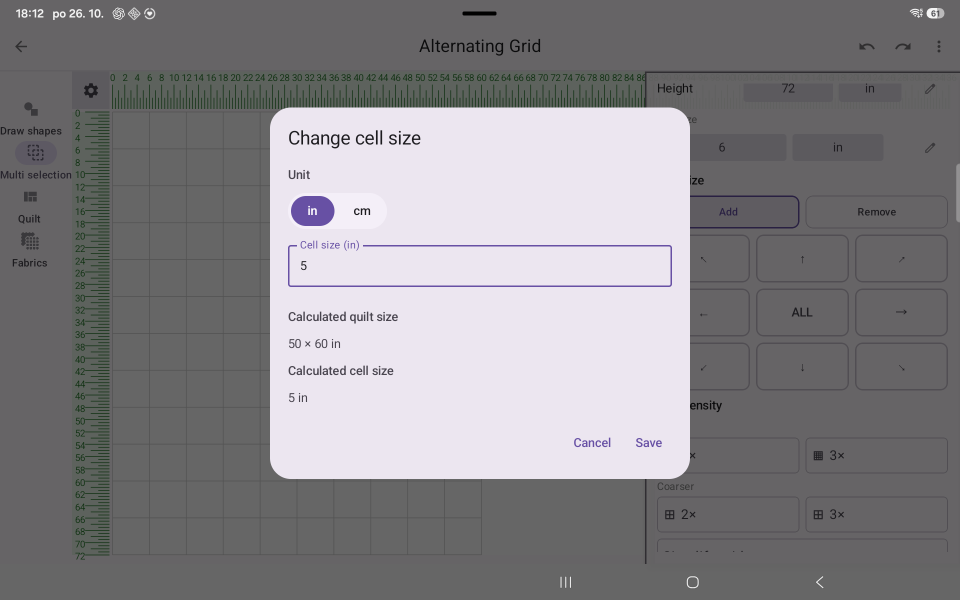
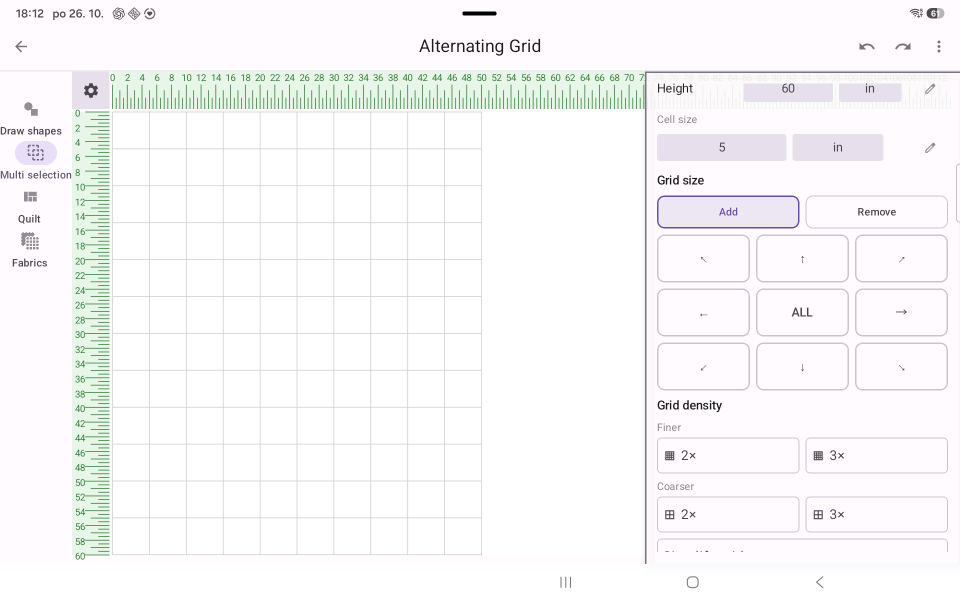
In this editor dialog, switching units converts the currently entered length. This differs from entering a custom size for a new quilt, where you need to check the numbers and enter them for the new unit after switching.
Add or remove space at the edges
Under Grid size, first choose Add or Remove, then tap the appropriate cell in the arrow controls:
- An arrow toward one side changes one column or row at that quilt edge.
- A corner arrow changes one column and one row at the chosen corner together.
- ALL changes the border on every side: one column on the left and right, and one row at the top and bottom.
For a block, individual sides are unavailable so that the canvas stays square. Use a corner or ALL instead.
Adding creates empty space, not a completed fabric border. Existing patches are not stretched; when adding on the left or top, they shift with the original canvas. For a quilt, the physical cell size stays the same, so its overall dimensions change.
Continue from the last screenshot: a 10 × 12 grid, a 50 × 60-inch quilt and 5-inch cells. Choose Add and the right arrow to add one column along the right edge. The grid becomes 11 × 12 and the quilt 55 × 60 inches. The cell size remains 5 inches.
Only unused edges can be removed. If a patch touches an edge involved in the operation, the app rejects the change. This operation does not crop or delete patches. Minimum and maximum grid dimensions can also limit the operation.
Lines, dots and zoom
In workspace settings under the gear icon, toggle Show grid lines to switch between lines and points. This changes the grid's display, not its density or physical dimensions. Zoom likewise only changes the view.
Use Undo to reverse an unwanted density change or edge addition/removal. To change entered physical dimensions back, reopen their editing dialog and enter the desired value.
Editor overview · Draw your own block · Arrange a quilt · New quilt dimensions