Select patches and work with colors
To recolor one patch, several different parts or a whole color group, first select what you want to change. The editing panel then applies changes to the selected patches together.
Choose a selection mode
Choose a mode from the selection menu in the editor tool bar, then briefly tap patches:
| Mode | How it works |
|---|---|
| Single selection | When selecting a different patch, the previous selection is cleared first, then the patch you tap is selected. Tapping an already selected patch again deselects it. |
| Multi selection / Multiple selection | Add individual patches to the selection in turn. Their colors and shapes may differ. Tap a selected patch again to remove it from the list. |
| Same color (in the quilt editor) | Tapping an unselected patch selects all patches of that color and replaces the previous selection. Tapping an already selected patch clears the whole selection. In the block editor, use the select-same-color button in the patch panel instead. |
Blue dashed outlines mark selected patches. The panel header shows their count; for a single patch, it may show the shape name instead.
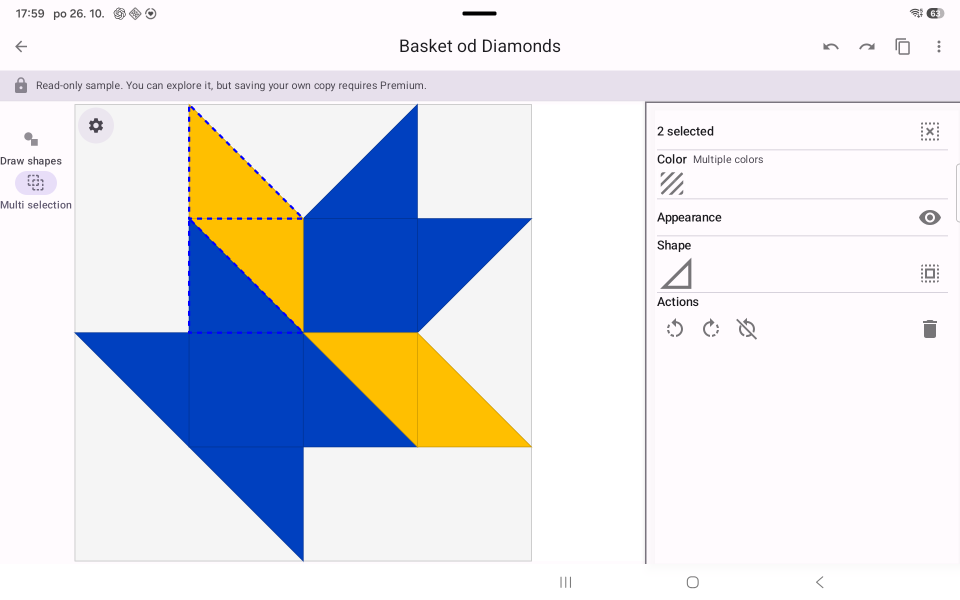
Select with a brief tap. Dragging with one finger in selection mode pans the canvas. For stylus behavior, see Gestures and stylus.
Extend the selection by color or shape
In the selected patches' panel, look for the select-same symbol next to Color and Shape. Each button extends the selection using a different property:
- Next to Color: when all selected patches share one color, tap to add every other patch of that color, regardless of shape. You can start with several selected patches; what matters is that they share one color.
- Next to Shape: when all selected patches share one shape type, tap to add every other patch of that type, regardless of color. For example, selecting a square lets you extend the selection to all squares.
The buttons appear independently. With multiple colors selected, the Color button is unavailable; with multiple shape types selected, the Shape button is unavailable. If the selection contains both multiple colors and multiple shape types, neither button appears.
For example, two differently colored triangles of the same type allow selection by shape but not by color. A square and a rectangle of the same color allow selection by color but not by shape.
These panel buttons extend an existing selection. In the quilt editor, the separate Same color mode in the tool bar also selects a color group directly by tapping a patch on the canvas.
Recolor selected patches
- Select one or more patches.
- In their panel, tap the swatch under Color. When the patches have different colors, the swatch is hatched and the panel shows Multiple colors.
- Choose a color in Select Fabric Color.
- Confirm with Apply. All selected patches receive the same color. Cancel closes the picker without applying the change.
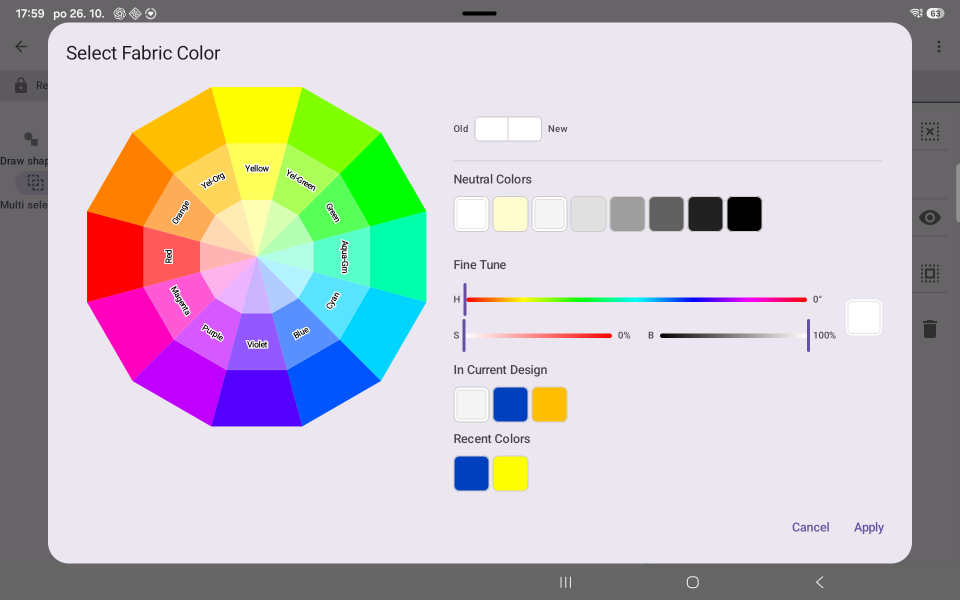
The picker may include Neutral Colors, In Current Design and Recent Colors. When Fine Tune is shown, the H, S and B sliders adjust hue, saturation and brightness. The available picker sections depend on app settings.
New patches have a separate color setting
Color in the Draw shapes tool bar sets the color of subsequently drawn patches. To recolor existing patches, use Color in the selection panel.
Choose colors for a season
Four choices above the color wheel — Spring, Summer, Fall and Winter — help you find colors for the mood of your design. If the picker has tabs, open Spectrum first.
- Tap a season. Its button is highlighted and matching colors remain in color on the wheel. Other segments appear neutral with diagonal hatching.
- Tap another season to switch the filter. Tap the active season again to turn it off and display all colors.
- Choose a color and confirm with Apply. You can also choose a hatched segment; it selects that segment's original color.
Changing the season does not recolor the design or change your current color choice. Some shades belong to more than one season, so the choices can overlap.
The filter works with both the basic and expanded wheels. The expanded range of shades requires Premium. Neutral colors, current design colors, recent colors and the separate Palettes tab remain unchanged.
Your season stays selected when you rotate the device, switch between basic and expanded wheels, or return from Palettes to Spectrum. Closing and reopening the color picker starts without a seasonal filter.
Reveal the quilt's design colors first
If the canvas shows fabric photographs, temporarily hide them with Show fabrics in the Fabrics panel. This makes it easier to compare the original shades before recoloring.
Reuse a color from the current design
In Current Design offers colors from standalone patches. If the design contains inserted blocks, enable Include colors from inserted blocks to add colors from their inner patches. Each exact shade appears only once, even when several patches or blocks use it.
- The option starts off when you open an editor. Your choice is retained when you reopen the picker or rotate the device while working in that editor.
- The underlying color of a position filled with a block is excluded from this palette, even with the option off. It is still retained for selecting positions by the same color.
- If a quilt contains only inserted blocks, the swatch list may initially be empty. Enable the option to display their colors.
- Toggling the option only changes the available swatches. Tap a color and confirm with Apply to use it.
The wheel adapts to the available space; in landscape, controls use two columns. Swipe long rows of color swatches sideways.
Colors can mark parts that belong together
A color does not have to represent the final fabric color. In a quilt template, it can mark positions that should receive the same block or be rotated together. Same color selects them with one tap, even when they are not adjacent.
In a quilt with embedded blocks, this selection compares the underlying color of whole positions. It does not select individual colored patches inside the embedded blocks. Their patterns may look different while still belonging to the same group.
To change individual patches inside a pattern, open the embedded block editor.
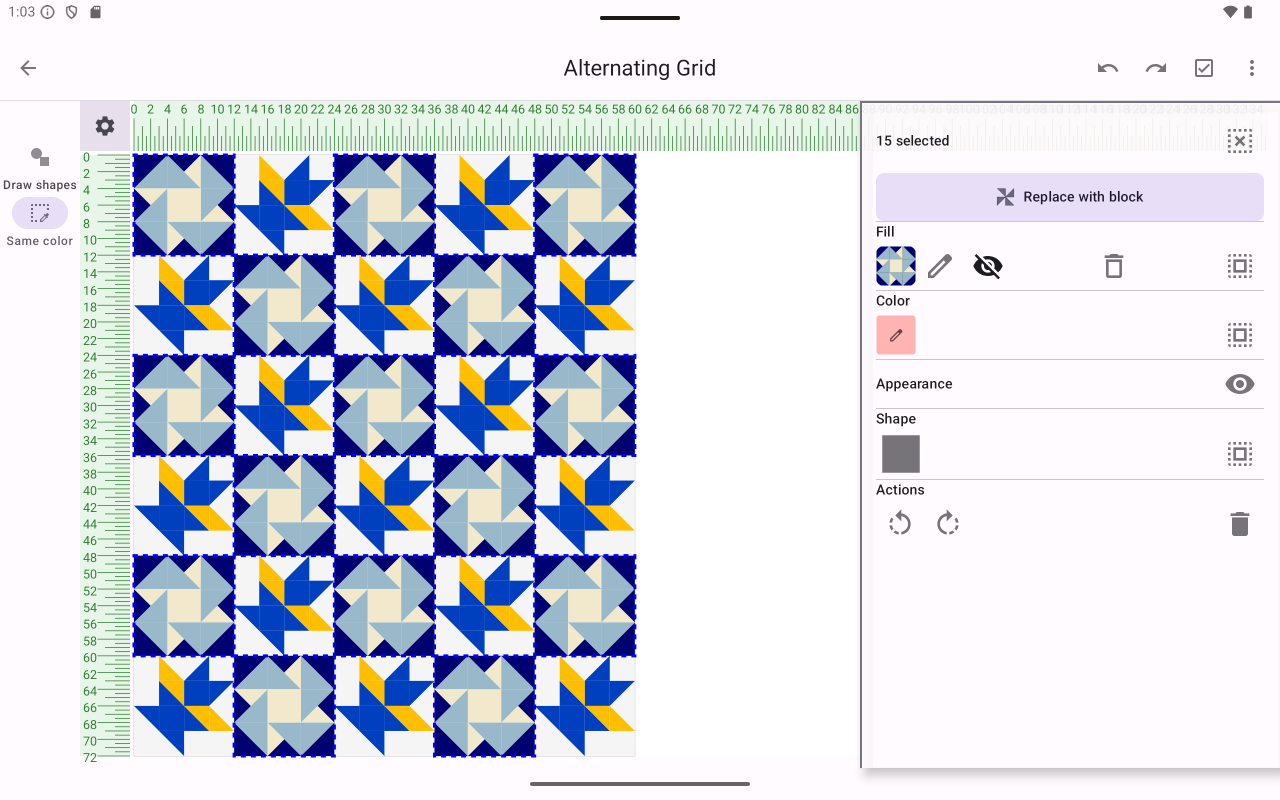
If you recolor two previously different groups to the exact same color, subsequent color-based selection will select them together. Keep different colors if you want the groups to remain distinct. Reuse a swatch from the current design to match a color exactly: similar-looking colors are not necessarily identical.
Clear a selection or undo a change
- Clear selection in the panel header deselects patches while keeping their colors and shapes.
- In single and multiple selection modes, tapping an empty part of the canvas also clears the selection.
- To undo an unwanted color change, use Undo in the top bar. Clearing the selection does not undo recoloring.
To draw with a finger again, choose Draw shapes. With Stylus always draws enabled, follow the pen control guide.
See Rotate blocks and mirror a design for the difference between rotating patterns in selected positions and changing the whole design.