App settings
In App settings, choose a language, light or dark appearance, and open ad consent options. Changing the appearance or language does not recolor your blocks or quilts.
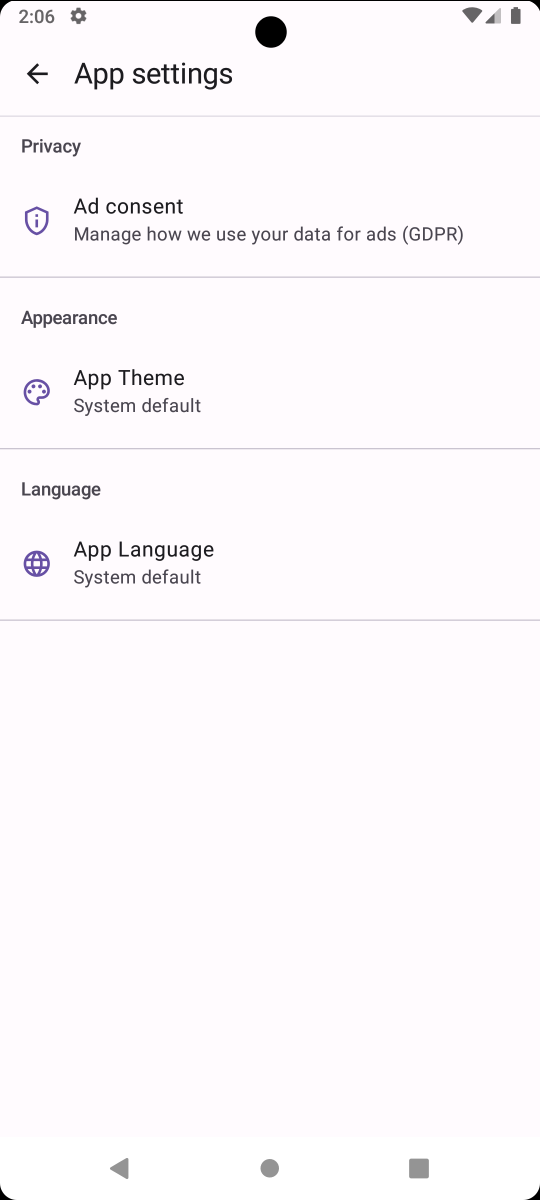
The main Settings menu
Choose App settings in the main Settings menu. The same menu also contains other separate screens:
| Item | Purpose |
|---|---|
| App settings | Language, appearance and ad consent. |
| Subscription | Premium access options. |
| Redeem coupon | Enter a reward code; this item appears only when the feature is available. |
| About | Application information, such as its version and licenses. |
Light or dark appearance
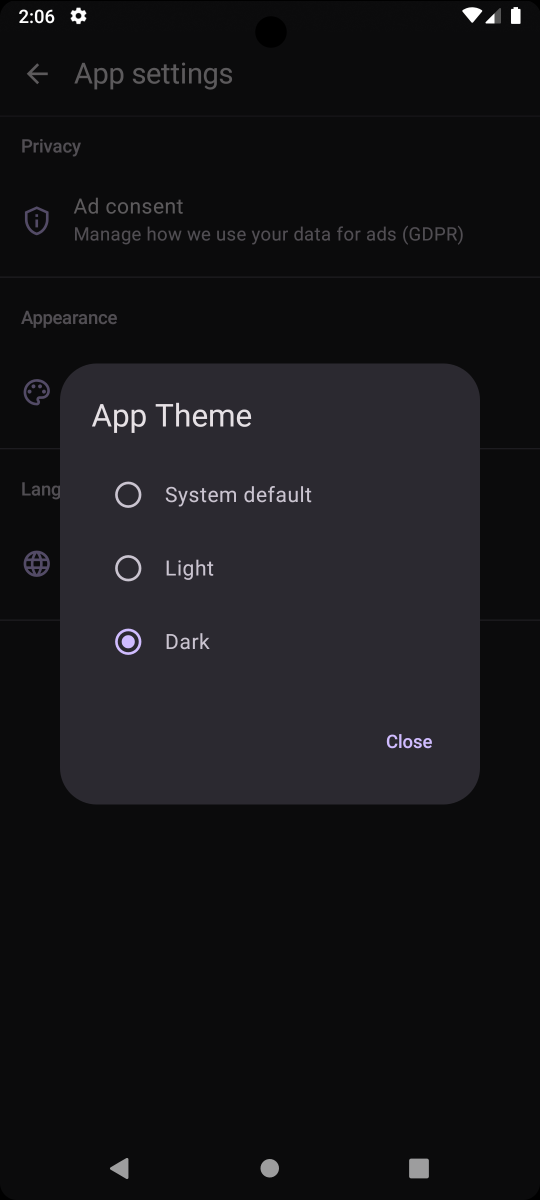
- Under Appearance, tap App Theme.
- Choose an option:
| Option | Behavior |
|---|---|
| System default | QuiltCat follows the device's light or dark mode. |
| Light | Uses a light interface regardless of the device mode. |
| Dark | Uses a dark interface regardless of the device mode. |
The choice applies when tapped; no separate save is needed. The theme changes the app controls, not the design colors of your patches.
App language
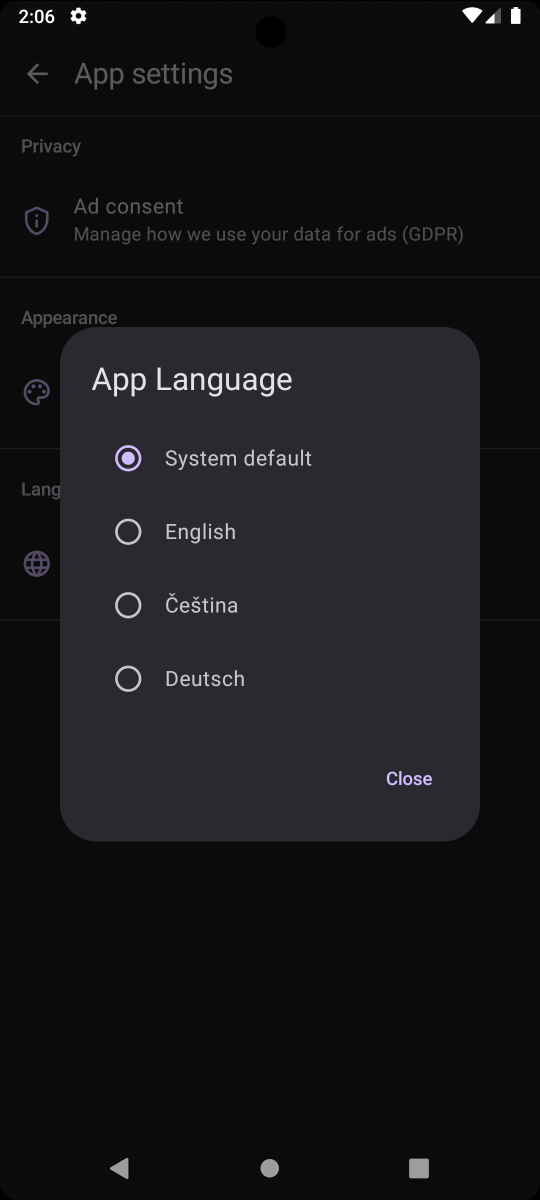
- Under Language, open App Language.
- Choose Čeština, English, Deutsch or System default.
Choosing a specific language sets QuiltCat's interface independently of the phone or tablet language. System default returns to the device's language preferences; English may be used if a translation is unavailable.
The selection applies immediately and the screen may reload. Save your work in progress before changing the language.
Names you have entered for blocks, quilts or fabrics are not automatically translated.
Help language
Web help opens in the app's interface language: Czech, English or German. Other languages use English. If a Czech or German article is missing from the website, the app tries its English version and displays a fallback-language notice.
Reopen help after changing the app language; an already open article may not switch automatically.
Ad consent
Under Privacy, tap Ad consent. If a form is available, the ad provider's options open so you can review or change your choices. Follow the options presented in the form itself.
Editor workspace settings
Adjust design units and grids in the editor. Grid lines, the minimap, drawing repetition and stylus controls are in the Workspace panel. Find these settings while a design is open.