Quilt template gallery
Choose a prepared layout for your new quilt in the gallery. Each card shows a template preview and name. Scroll vertically to see more templates.
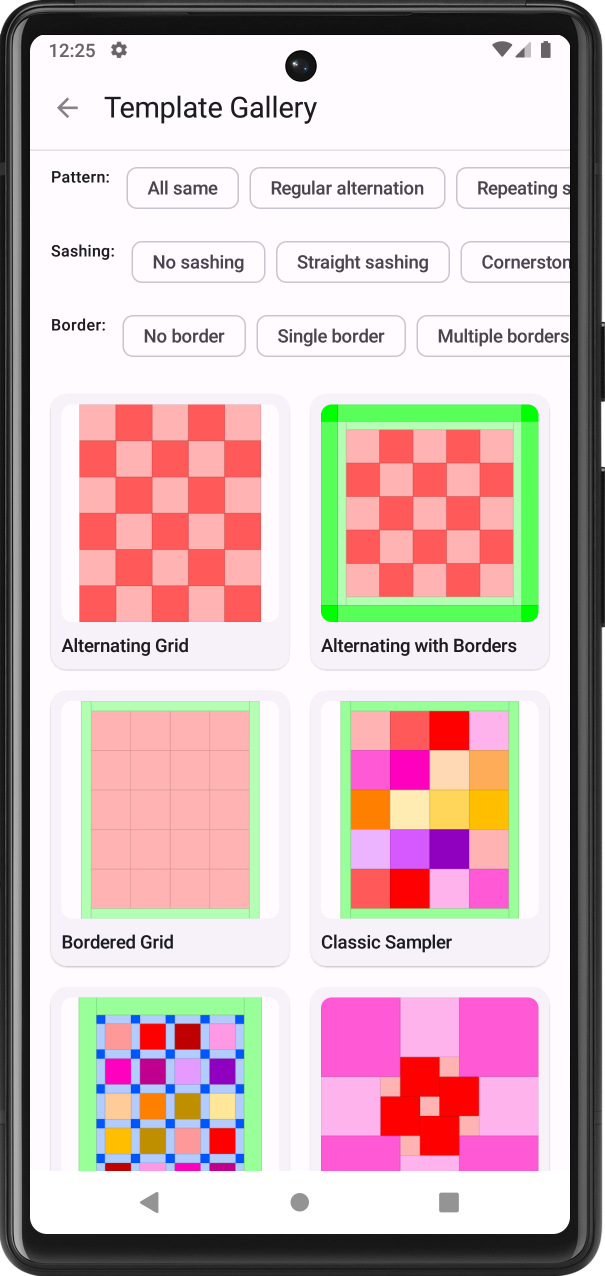
The colored positions in the previews suggest the arrangement and repetition of future blocks. Quilt templates and your own starting designs explains how to use them for a checkerboard, sampler or your own repeating pattern.
Narrow down the selection with filters
Above the previews, filters are arranged in three rows:
| Group | What you choose |
|---|---|
| Pattern | The arrangement of block positions, such as All same, Regular alternation or Free layout. |
| Sashing | Strips between blocks, such as No sashing, Straight sashing or Cornerstones. |
| Border | Borders around the quilt, such as No border, Single border or Multiple borders. |
Swipe sideways within a row to see more options. Search templates by name by tapping the magnifying glass in the top bar; search ignores diacritics. Hiding search preserves your query in a Search: ... summary chip.
- Tap an option to apply its filter. The selected option is highlighted.
- Each row can have one selected option. Choosing another replaces it.
- Tap the selected option again to remove that row's filter.
- Filters from different rows and text search combine. Only templates matching all selected conditions are shown.
For example, Regular alternation combined with Single border selects templates with an alternating layout and one border.
To return to the full selection, tap Clear filters before the filter rows. This action resets group filters; use the cross on the search summary to clear text search.
No matching template?
Remove a filter or use Clear All. The gallery may not contain a template for a particular combination of conditions.
Use a template
- Tap the card of an available template.
- The editor opens a new quilt with that template's layout and dimensions.
- Add blocks, adjust colors or assign fabrics to suit your plans, then save your design.
The original template stays intact. You are working on a new quilt in the editor; save it to keep your work. You can use the same template again later for another design.
See Arrange a quilt from a template for the full workflow.
To start with a blank canvas and create the layout yourself, choose New Quilt and select the dimensions and working grid.
Premium templates
Some templates require Premium. If you do not have access, their previews are faded and show a Premium symbol in the corner. Tapping one of these cards displays information about Premium access; it does not open a quilt yet.
On phones and tablets
The number of preview columns adapts to the screen width and device orientation. Scroll the gallery vertically and swipe individual filter rows sideways.
Studio · Home screen · Templates and your own starting designs