Editor: workspace and controls
Use the editor to draw blocks and arrange quilts. Your design occupies the central canvas, with its name and main actions above. Tools and panels adapt to what you are working on.
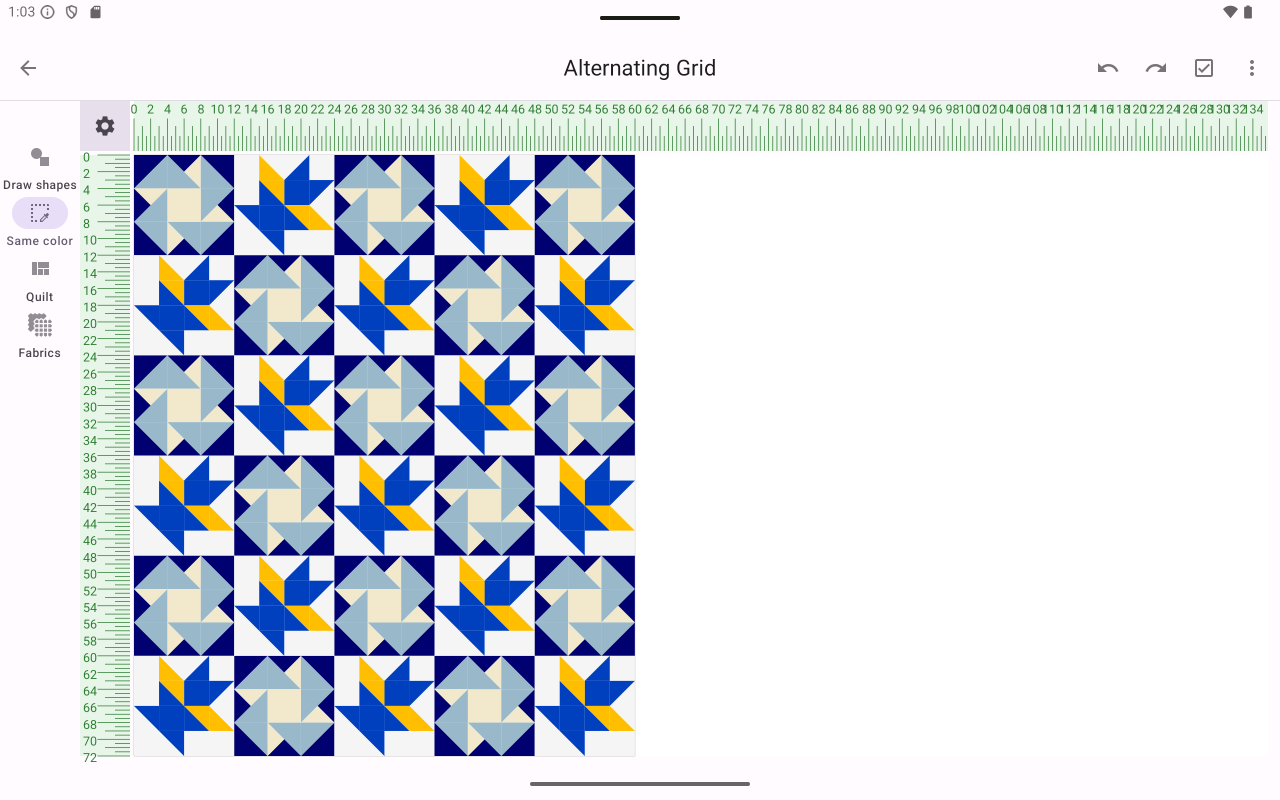
Block or quilt?
- When drawing a block, build a pattern from shapes and colors. A saved block can then be used in a quilt.
- When arranging a quilt, work on the whole layout. Combine shapes and embedded blocks, and assign fabric photographs to colors.
A new quilt can begin with a blank canvas and chosen dimensions or a prepared template. Open your saved work from Studio, the Block Gallery or the Quilt Gallery.
Ready to draw? Follow Draw your own block, from choosing a grid through saving your design.
For a prepared layout, follow Arrange a quilt from a template, covering color groups, block insertion and orientation.
Top bar
| Control | Purpose |
|---|---|
| Back arrow | Leave the editor. With unsaved changes, choose to save, discard or continue editing. System Back uses the same protection. |
| Design name | Identify the block or quilt you have open. |
| Undo / Redo | Reverse and reapply available edits. These actions do not navigate to another screen. |
| Save block / Save quilt | Save the design. This action appears for a nonempty editable design. |
| Reset transform | Restore the initial view after moving or zooming the canvas. It appears when the view has changed. |
| Three-dot menu | Other available actions, such as sharing the design as an image. Options depend on the open design and available features. |
If the design has assigned fabrics, the top bar also offers Show fabrics / Hide fabrics. The Show fabrics switch in the Fabrics panel controls the same setting. Turn it off to see the original design colors while keeping fabric assignments.
See saving and leaving the editor for the dialog choices, empty designs and offline saving.
Drawing and selection
The tool bar separates two activities: creating new shapes and selecting shapes already on the canvas.
Draw shapes
Choose Draw shapes to enter drawing mode and select a shape, such as a square, rectangle or triangle. Color is also available in this mode for new patches.
The drawing color and the color of selected patches are separate settings. To recolor an existing patch, select it first and use its editing panel.
Selection mode
The selection tool label changes to reflect its current mode:
- Single selection clears the previous selection when you select a different patch, then selects the patch you tap.
- Multiple selection lets you select several patches in turn. Tap a selected patch again to remove it from the selection.
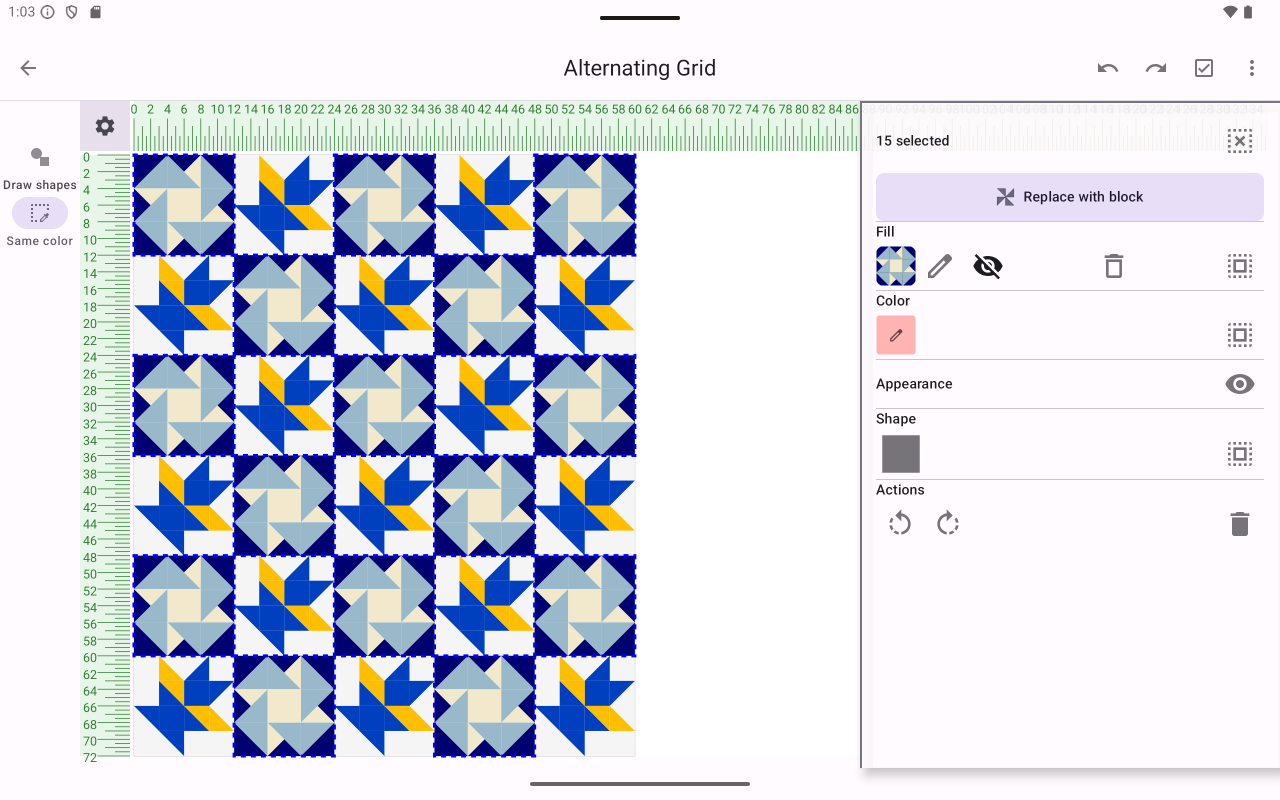
- Same color (in the quilt editor) selects patches sharing the color of the patch you tap. This is useful when filling color groups in a quilt template. When editing a block, you can select patches of the same color using the button in the patch panel.
Selecting patches opens a panel with actions for them. Clear the selection with the corresponding icon in the panel header.
The buttons next to Color and Shape can extend the selection to matching patches. The Color button is available for one shared color; the Shape button for one shared shape type.
For detailed steps and the difference between drawing color and existing patch colors, see Select patches and work with colors.
Patch panel and whole-design panel
For fill controls, editing patches inside a pattern, and the difference between hiding and removing it, see Embedded blocks in a quilt.
Selected patches have their own editing panel. Available actions depend on their type and number: one shape, a group and an embedded block have different options.
With nothing selected, the tool bar offers Pattern or Quilt. Use this to open settings for the whole design, such as its name, grid and canvas display.
A quilt with nothing selected also offers Fabrics for fabric assignments. If it is missing, clear the patch selection first. Prepare fabric photographs and material details in the Fabric Stash.
For choosing photographs, rotating them and comparing them with the original colors, see Assign fabrics to quilt colors.
Zoom and pan
For the difference between quilt dimensions, grid density and adding space at the edges, see Grid and physical dimensions.
Use two fingers to zoom and move around the canvas. In selection mode, dragging one finger also pans the canvas; a short tap selects a patch.
Zooming changes only your view. It does not change the quilt's physical dimensions or the grid cell count. Choose Reset transform in the top bar to return to the initial view.
See Gestures and stylus controls for an illustrated guide to finger, stylus and two-finger controls, including Stylus always draws.
Read-only designs
A prepared block or sample quilt may open for viewing only. An information banner below the top bar identifies this mode. The original is not overwritten.
For your own version of a sample quilt, use Make editable copy in the Quilt Gallery. A prepared block may offer Save as new block, depending on available features and access. This action may require Premium.
Saving, copies and sharing
See Save, copy and share a design for keeping editable work, making a copy and sending an image.
On phones and tablets
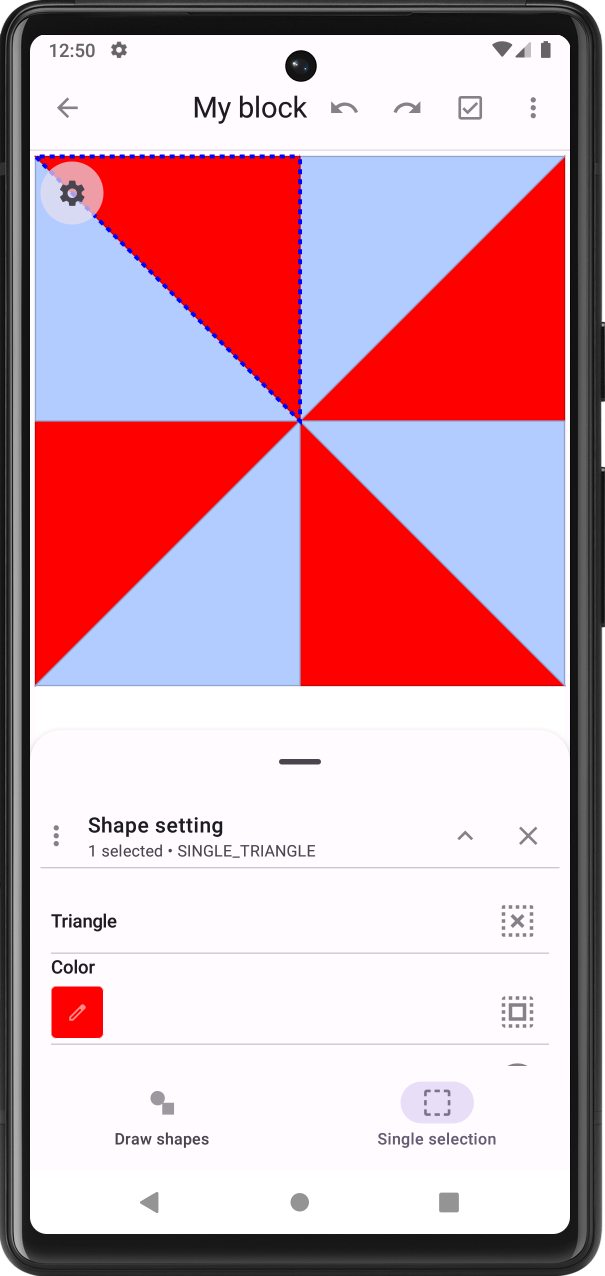
In portrait orientation, the tool bar is at the bottom; in landscape, it moves to the left. On a portrait phone, the editing panel opens from the bottom and can be expanded. On tablets and in landscape, it sits beside the canvas.
The editor also works on a phone. Try portrait and landscape for different tasks: portrait provides room for an expanded lower panel, while landscape can make it easier to see the design alongside the controls. On a small screen, an open panel may cover part of the canvas. Collapse or close it when you need to see the result.
A tablet provides more space to show the design and control panels together. This makes arranging quilts and working on details easier to follow.
The position may change, but the workflow remains the same: choose an activity or select patches, then use the corresponding panel.
See Rotate blocks and mirror a design for the difference between rotating patterns in selected positions and changing the whole design.
For grid display, the minimap and repetition of new strokes, see Workspace settings and drawing with reflection.