Quilt templates and your own starting designs
A quilt template is a prepared starting point for your own design. Its colored squares indicate the arrangement of future blocks: they may form a checkerboard, a repeating sequence or another pattern.
Squares of the same color form a group you can work with together. You can easily replace them all with a chosen block or rotate the inserted blocks together. A template may also include sashing between blocks and borders, which you can quickly recolor.
One layout can therefore become very different quilts depending on the blocks you choose, their rotation, and the colors and fabrics you use. You can start with a prepared template from the gallery or a saved quilt of your own.
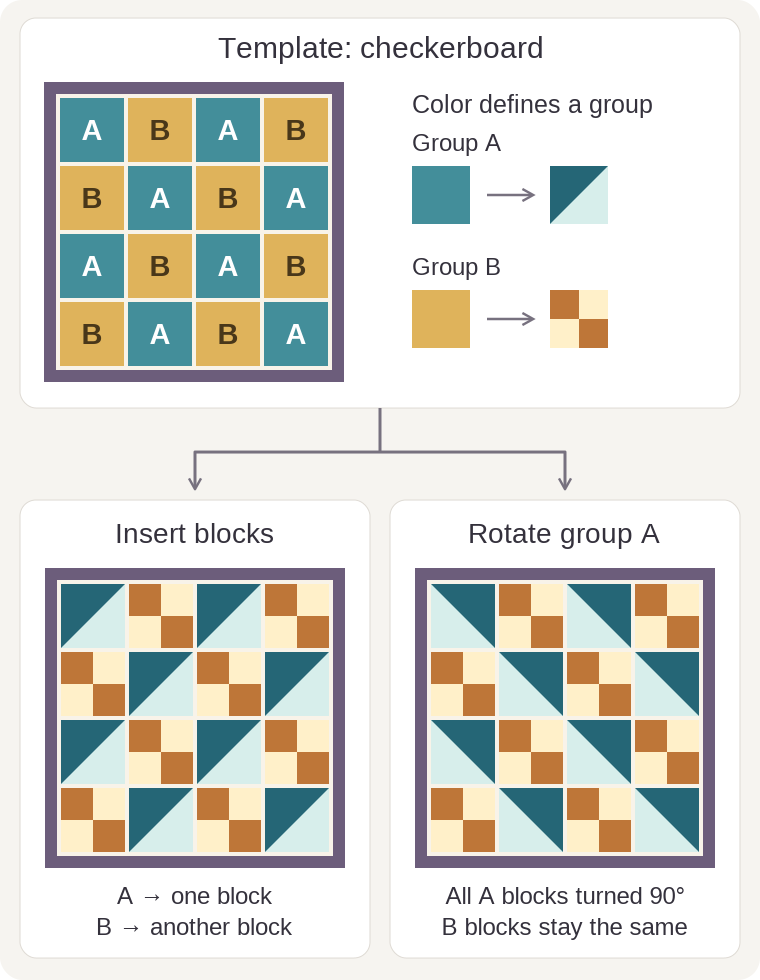
One template, two different quilts
The colors in prepared templates are chosen to suggest the intended arrangement at a glance. For example, a different color for every square suggests a sampler – a quilt made up of different blocks.
These colors are a guide, and you are free to adapt the design. Even in a sampler template, you can fill every position with the same block or arrange repeating blocks in your own way.
The following screenshots show two ways to use the same layout. The sampler variation also has a different border color.
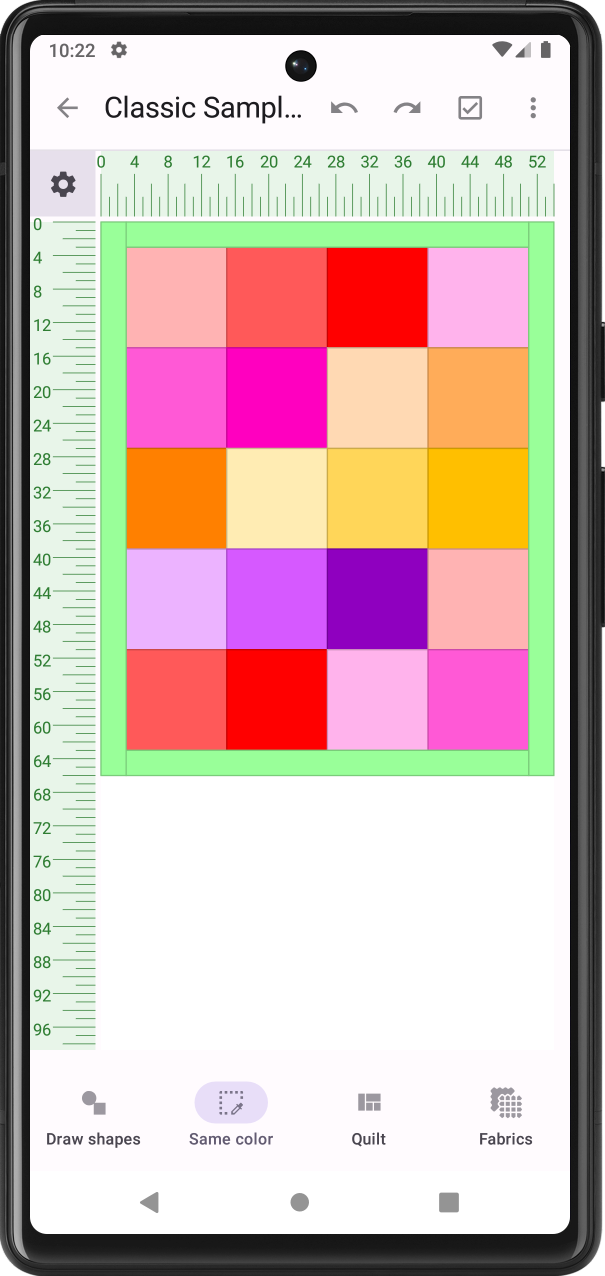
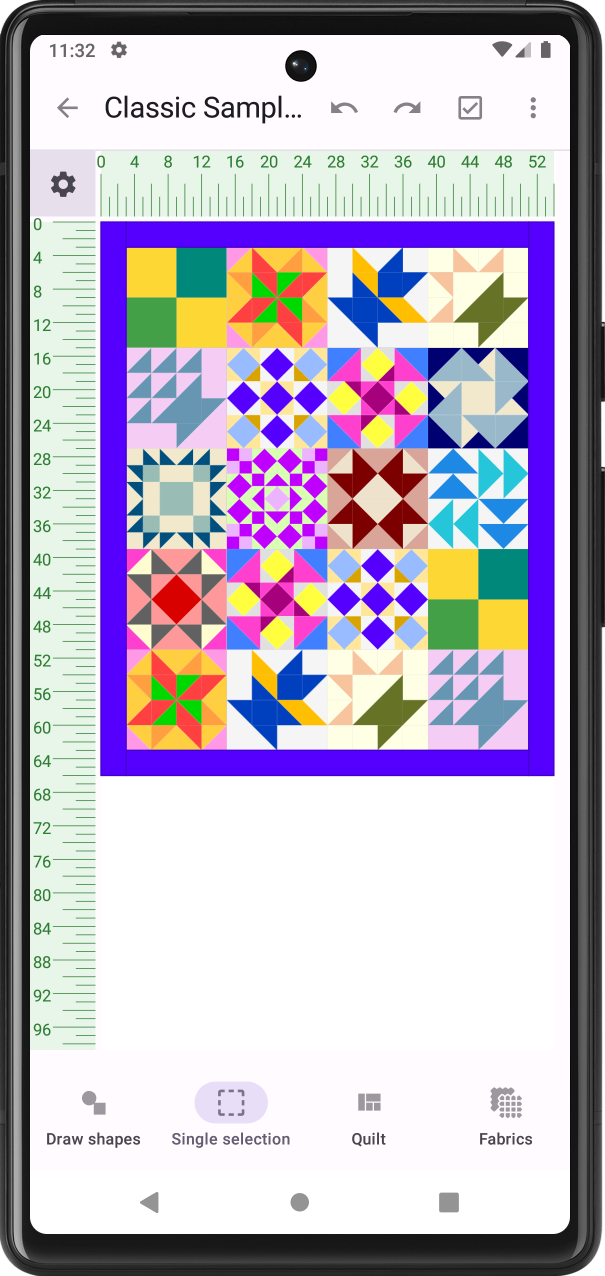
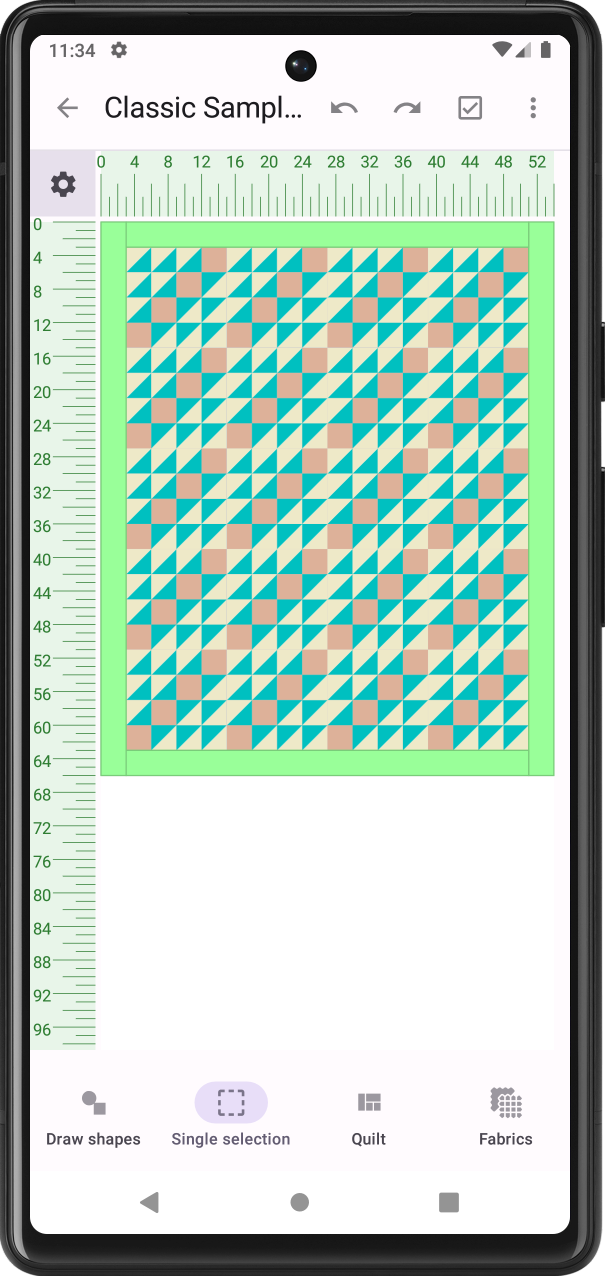
The colors suggest the intended use. You decide what the quilt becomes.
A prepared template from the gallery
A quilt template provides a prepared layout that you can adapt to your plans. It is useful when you want to begin designing without building the whole quilt from scratch.
- In Studio, choose a template preview or open the template gallery through Browse all templates. You can also choose a template from Home.
- The selected template starts a new quilt in the editor.
- Adapt the design and save it as your own quilt.
The original template stays intact. You can return to it to start another design. Some templates may require Premium.
Your quilt as a reusable starting point
Your own quilt can serve the same purpose: for example, a favorite block layout with borders that you want to use for several projects. It can be a simple starting layout, a work in progress or a finished quilt.
This starting design stays among your quilts. You do not need to add it to the template gallery or mark it as a template. Give it a clear name, such as Base – nine blocks with a border, to make it easy to recognize.
Create another design
- Save the quilt you want to use as your starting design.
- In Studio, choose Browse all quilts to open the quilt gallery.
- Tap the starting quilt in the gallery and choose Make editable copy from its actions.
- Find the new copy in the gallery. Its name has (copy) appended.
- Open the copy, name it for your new project and edit it in the editor. Save your changes.
Creating a copy saves it directly in the gallery. It does not open the editor; open the new copy to continue.
Before you start editing
Simply opening your quilt on Home or in Studio continues the original design. To keep that starting point for future projects, first make a copy and work in the copy.
What the new design carries over
You do not need to rebuild the layout, inserted blocks, colors or dimensions of the starting quilt. You can then change them in the new design. Later changes to the starting quilt's layout or colors do not automatically update variations you have already created.
If you copy a quilt with assigned fabrics, the copy uses the same fabrics from your stash. It does not create new photos or stash entries for them. Editing the fabric record itself, such as replacing its photo in the fabric form, may therefore affect other designs that use that fabric.