Workspace settings and drawing with reflection
The Workspace panel controls grid appearance, the minimap and display aids for embedded blocks. It also contains reflection for new strokes and the stylus drawing option.
Open workspace settings
Tap the gear in the upper-left corner of the canvas, where the rulers meet. It remains available without rulers. Scroll the panel for settings farther down.
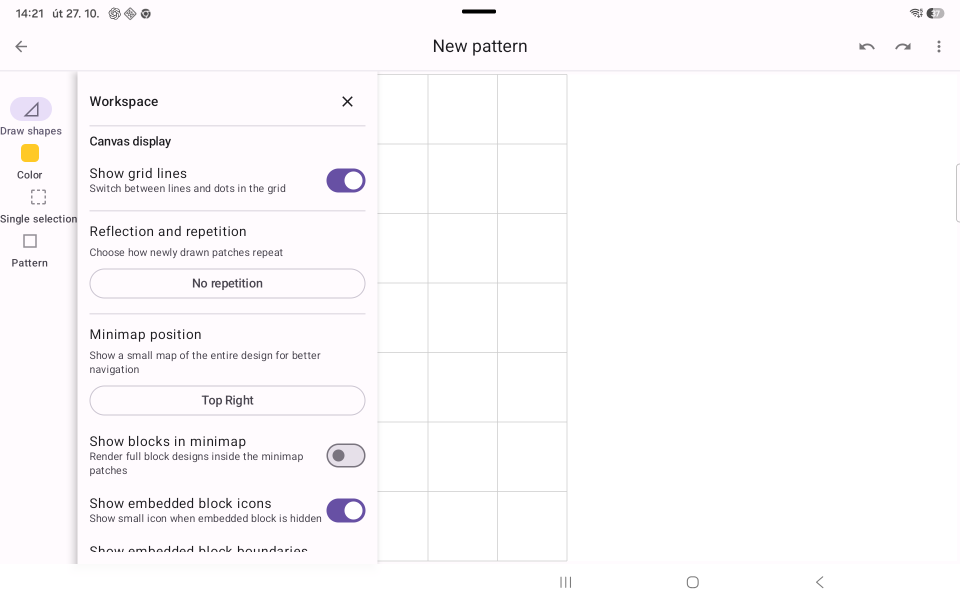
Grid lines or dots
Show grid lines switches between lines and dots. It does not change the cell count, patch positions or physical dimensions. To change the cell count or point density, see Grid and physical dimensions.
Reflection for new strokes
Reflection and repetition helps you draw repeated patches. Choose a mode and use your normal drawing tool; one stroke also creates the corresponding mirrored or rotated patch.
Choose how new patches repeat:
| Option | What it creates during a new stroke |
|---|---|
| No repetition | Only the patch you are drawing. |
| Mirror top/bottom | Adds a mirror across the horizontal center line, above/below. |
| Mirror left/right | Adds a mirror across the vertical center line, left/right. |
| Quarter-turn repeat | Repeats the patch in quarter turns (90° each) around the canvas center, at 0°, 90°, 180° and 270°. |
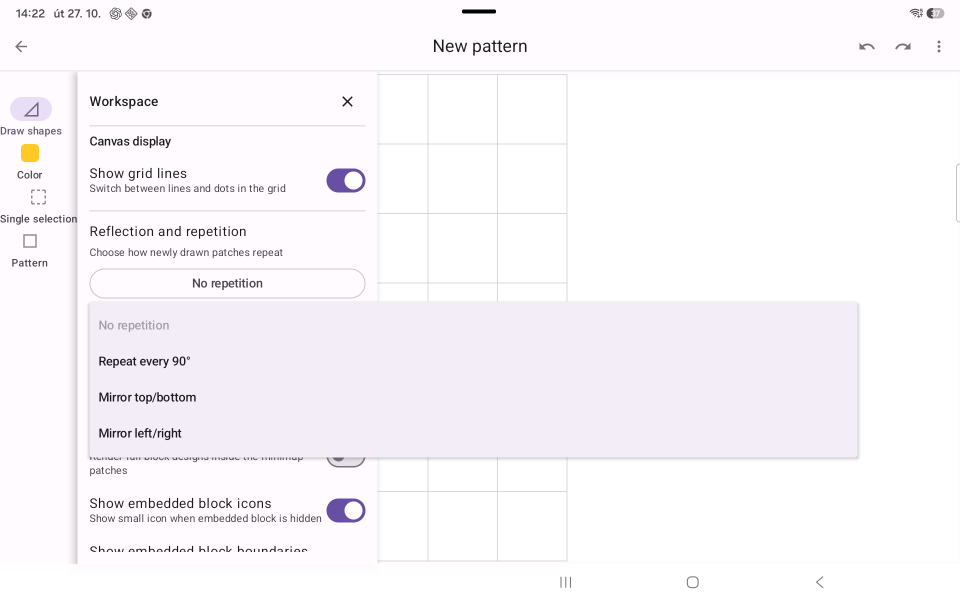
In earlier versions, Quarter-turn repeat was named Repeat every 90° or Both. None, Horizontal and Vertical correspond to the other three rows in the table. Renaming does not change how drawing works.
Quarter-turn repeat therefore creates four rotated repetitions rather than two simple reflections. Watch the preview during the stroke to see where the additional patches will appear.
Try repetition on a blank block
- Open your own block with free space; a blank square block is best for a first attempt.
- In Workspace, choose a mode such as Quarter-turn repeat.
- Close the panel, choose Draw shapes, a tool and a color.
- Draw a small patch away from the center lines and watch the repetition preview.
- Lift your finger or stylus. Return the setting to No repetition when you want to draw individual patches again.
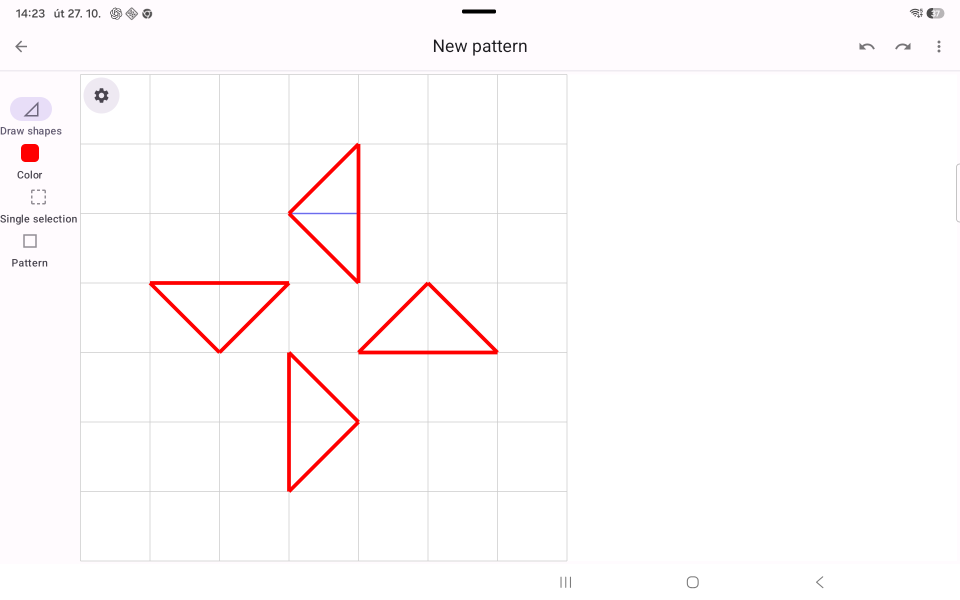
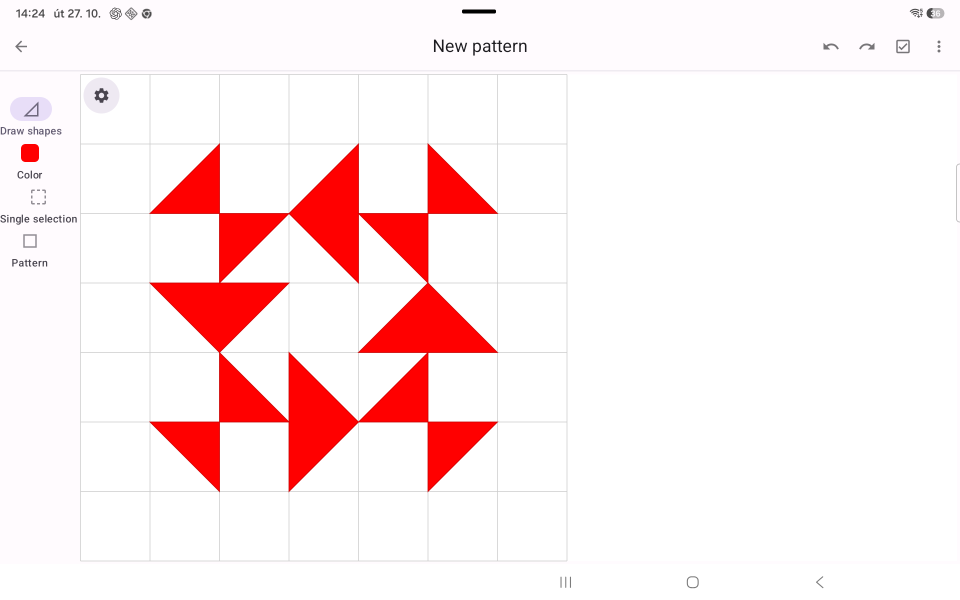
Drawing with repetition in action
Open or download the MP4 video (1.1 MB)
You will not always get four patches: overlapping new copies are not added on top of one another, and copies outside the canvas are omitted. If any patch being added would overlap an existing patch, the stroke is not added. Start in free space and follow the preview and any app message.
Changing the option does not flip an existing design
This setting affects new strokes. It does not rotate, redraw or remove existing patches. To change a finished block, use rotation and mirroring inside the block editor.
The minimap when zoomed in
Under Minimap position, choose a canvas corner or Hidden. The minimap appears only when the design is zoomed in. It shows the whole design and an outline of the area currently in view. If it is missing, check that it is enabled and that you have zoomed in.
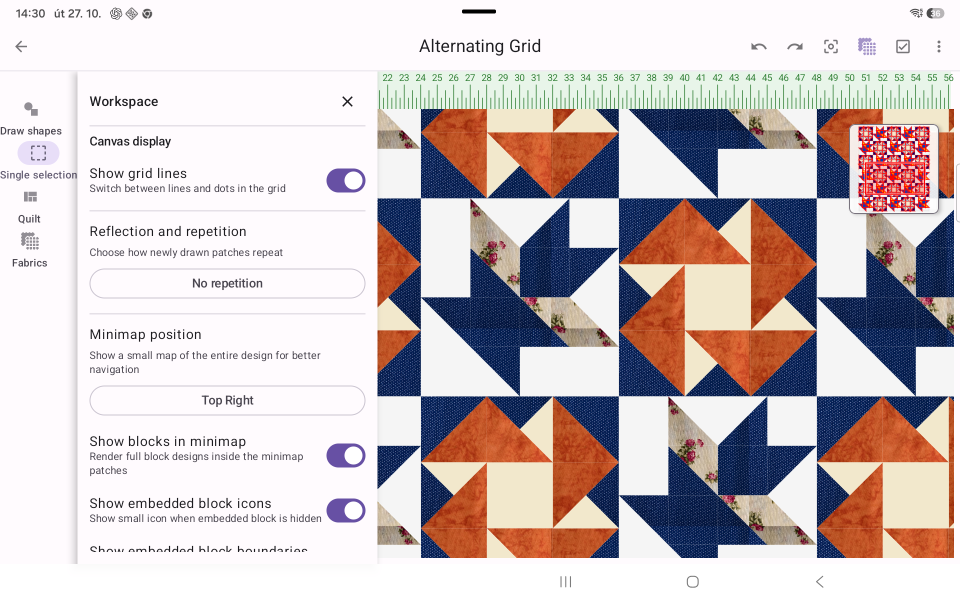
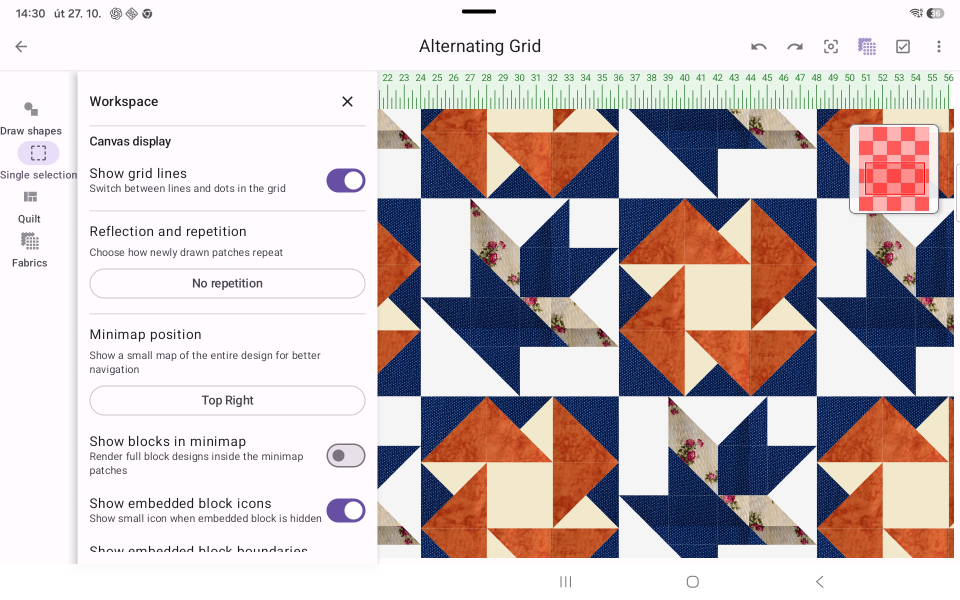
- Show blocks in minimap switches between embedded pattern previews and their underlying colors. You can also toggle it by double-tapping the minimap.
- Drag the minimap with your finger to a position where it obstructs your view of the design the least. This moves the minimap itself, not the design; use canvas gestures to move the working area.
This option changes only the minimap content. The main canvas keeps the same display; embedded blocks are neither hidden nor removed. The screenshots below show the same quilt at the same zoom.
Embedded block display aids
In a quilt, these options help distinguish positions even when they contain detailed patterns:
- Show embedded block boundaries outlines their positions.
- Show embedded block icons marks a position with a small icon when its embedded pattern is hidden.
- Under Block designs, Show all / Hide all shows or hides embedded patterns together. This section appears for quilts containing embedded blocks.
Hiding a pattern does not remove it. See Embedded blocks in a quilt for the difference.
Stylus controls and returning to drawing
Under Controls, Stylus always draws lets you draw with the pen and use your finger to select or pan. See Gestures and stylus for the workflow and simultaneous-touch limitations.
After closing settings, check your drawing tool, color and reflection mode. Use Undo to reverse patch changes; change the reflection mode for subsequent strokes directly in the panel.
For the interface language and appearance, see App settings.
Editor overview · Draw a block · Rotation and mirroring · Gestures and stylus